 Email Warm-up
Gmail App Password Bulk Setup for 100 Accounts
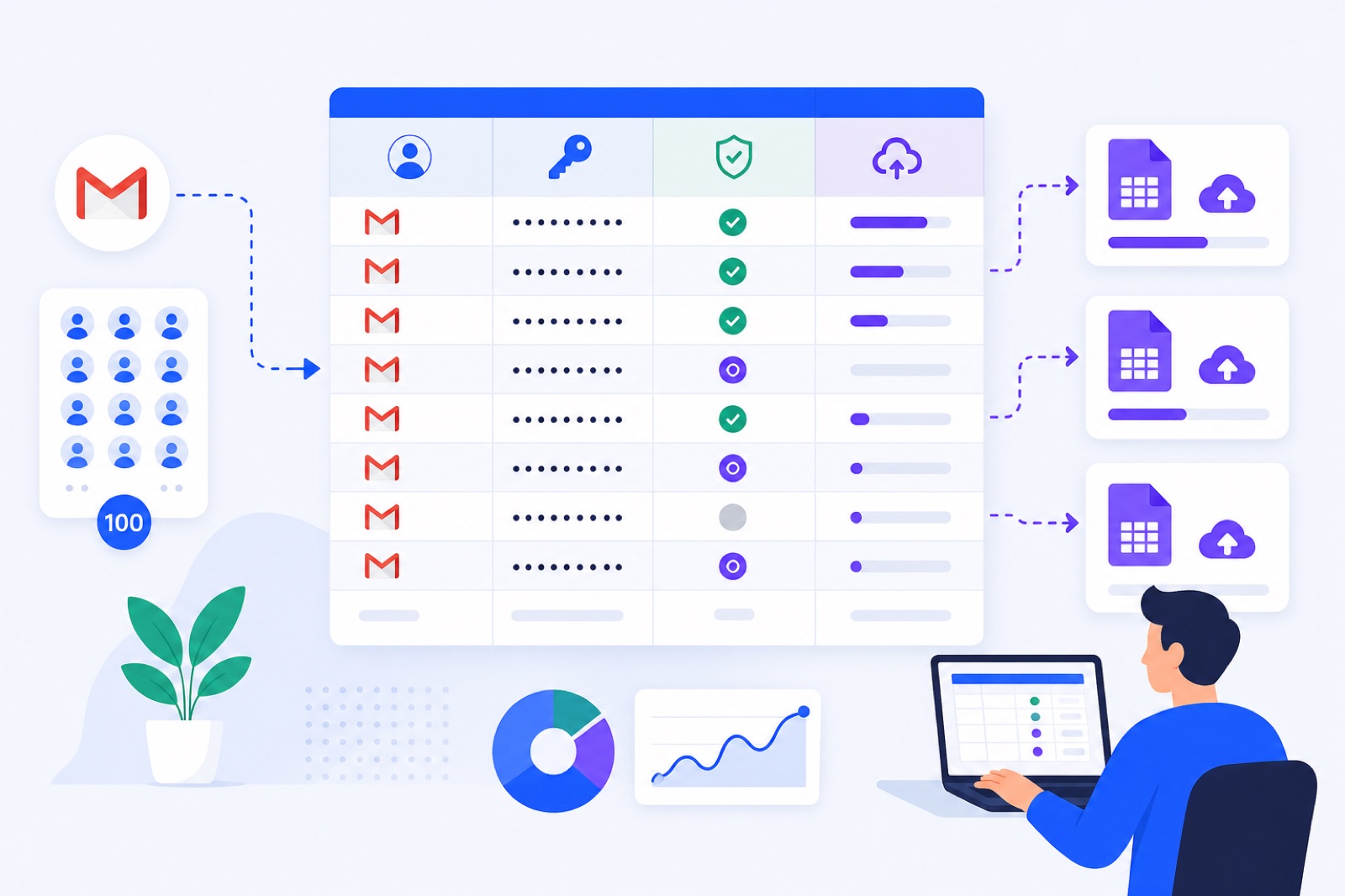
For 100 Gmail or Google Workspace accounts, the fastest safe setup is one app password per mailbox, tracked in a CSV with email, app_password, and name, then uploaded in small batches. If 2-Step Verification, IMAP, or row checks are missing, most failures look like bad passwords. This guide gives the routine, sheet layout, and upload checks.
If the accounts are for warm-up, keep account setup separate from the sending plan. Use the bulk Gmail warm-up guide for mailbox connection details and the CSV import guide when you are ready to upload. This page focuses on the app-password production line.
Google app passwords are not a central admin export. You create them inside each Google Account. The work is slow when every operator improvises. It is much faster when every account follows the same browser path, label, sheet columns, and upload batch size.
What blocks Gmail app password bulk setup?
Before you open 100 accounts, check the settings that control the work. Most failed uploads come from missing 2-Step Verification, disabled IMAP, Workspace policy, or CSV formatting.
| Item | Number or setting | What it means |
|---|---|---|
| Gmail accounts | 100 | Treat each mailbox as its own login and secret |
| App passwords | 1 per account | Do not reuse one app password across accounts |
| 2-Step Verification | Required | Google requires it before app passwords are available in normal accounts |
| CSV columns | 3 | Use email, app_password, name |
| First test batch | 5–10 rows | Catch policy and formatting errors early |
| Working batch size | 25–50 rows | Large enough to move, small enough to debug |
| BobWork default account limit | 200 mailboxes | Larger fleets can request a higher limit |
| Warm-up ramp | 3/day, +2/day | Each mailbox ramps separately |
| Default warm-up cap | 30/day | Editable per mailbox, maximum 100 |
| Weekend volume | 30% | Warm-up slows on weekends |
| Sending window | 09:00–18:00 | Uses the mailbox’s own time zone |
| Ready gate | 7+ days, spam rate ≤10%, 30 received | Do not start outbound before the mailbox passes |
Google’s app passwords documentation says app passwords require 2-Step Verification and may be unavailable for some accounts or policies. Use that page for Google’s current wording.
For IMAP, Google documents the user setting under Gmail settings. The usual path is Gmail → Settings → See all settings → Forwarding and POP/IMAP → Enable IMAP. Keep Google’s IMAP setup help open while training the person doing the rows.
For Google Workspace, check admin policy before blaming the CSV. If app passwords are blocked, users may not see the option after enabling 2-Step Verification. Google’s Workspace help covers 2-Step Verification enforcement.
How should the sheet look?
Start with the final mailbox list. Do not generate app passwords from a draft list, because every correction creates a chance to paste the wrong secret into the wrong row.
Use one row per mailbox. Add tracking columns before you add secrets, so you can see progress without reopening the Google Account.
| Column | Example | Purpose | CSV export? |
|---|---|---|---|
| alex@getacme.com | Mailbox login | Yes | |
| app_password | abcdefghijklmnop | Gmail app password | Yes |
| name | Alex | Sender first name or mailbox label | Yes |
| owner | Client A | Internal tracking | No |
| two_step_on | yes | Confirms the account is eligible | No |
| imap_on | yes | Confirms Gmail will accept IMAP | No |
| app_password_created | yes | Confirms the secret was generated | No |
| upload_batch | 1 | Lets you test in groups | No |
| upload_status | connected / failed | Filled after upload | No |
| error | invalid password | Stores the failure reason | No |
Keep the export clean. The final BobWork CSV for Gmail rows only needs email, app_password, and name. Gmail and Google Workspace hosts are filled in by the preset, so you do not need IMAP host columns for normal Gmail accounts.
If the mailboxes are for cold email, decide the domain spread before you upload. A typical setup uses several domains with a small number of mailboxes per domain. For planning, use the mailbox calculator by daily volume and the cold email deliverability checklist.
How do you create each password?
Use the same sequence for every account. Do not enable IMAP in one group, create passwords in another group, and then reconcile later unless two people are working from the same sheet.
Step 1: Open the account
Open the first account in a clean browser profile. Use one profile per account, or a controlled profile rotation, to reduce cross-login mistakes.
Confirm the mailbox address matches the row you are editing. Most bulk failures are not mysterious provider blocks. They are mismatched rows.
Step 2: Enable 2-Step Verification
Go to Google Account → Security → 2-Step Verification.
Turn it on and complete the allowed verification method. If your company uses Workspace, the admin may enforce which methods are allowed. Fix admin policy first; do not try to work around it from the user account.
When 2-Step Verification is active, mark two_step_on as yes.
Step 3: Enable Gmail IMAP
Open Gmail for the same account.
Go to Settings → See all settings → Forwarding and POP/IMAP. Under IMAP access, choose Enable IMAP. Save changes.
Mark imap_on as yes. This is separate from app-password creation. A valid app password can still fail if IMAP is disabled.
For single-account setup details, use the Gmail warm-up guide or Google Workspace warm-up guide. They cover the connection path without the 100-row spreadsheet process.
Step 4: Generate the secret
Stay in the same Google Account. Go to Security and find App passwords. Google may ask you to sign in again.
Use a label that makes later cleanup obvious, such as BobWork warm-up or Warm-up IMAP. The label is only for account management, but it helps when you revoke access later.
Generate the app password. Paste it into the app_password cell for that mailbox. Mark app_password_created as yes, then move to the next account.
Do not paste app passwords into chat tools. Do not email the spreadsheet. Share it only with the person doing the upload, and delete the working copy after the mailboxes are connected.
How do you export and upload?
The spreadsheet is the process. If it is messy, the upload will be messy.
Use the first sheet as the working sheet. Create a second sheet called export. Pull only the required columns into that sheet, so owner names, notes, and error details stay out of the CSV.
| app_password | name | |
|---|---|---|
| alex@getacme.com | abcdefghijklmnop | Alex |
| priya@getacme.com | qrstuvwxyzabcdef | Priya |
| sam@getacme.com | ghijklmnopqrstuv | Sam |
Use plain values. If your sheet uses formulas to build the export view, paste as values before saving the CSV.
Check these rules before upload:
- The header row is exactly email, app_password, name.
- Each email address is the full mailbox address.
- Each app password belongs to the email address in the same row.
- The normal Gmail password is not included.
- Empty rows are removed.
- Names do not contain unquoted commas.
- Internal columns are not exported.
If Google displays the app password with spaces, use one format consistently. A 16-character value without spaces reduces parsing mistakes.
In BobWork Email Warm-up, the bulk upload path is Add mailbox → Many mailboxes: upload a CSV. Every row gets the same IMAP and SMTP login test as a single mailbox. Failed rows show the reason, and already connected rows are skipped, so a corrected re-upload is safe.
Start with 5 to 10 rows. If every row fails, check Workspace policy, app-password availability, IMAP, and CSV headers. If one or two rows fail, check those accounts only.
Use this upload rhythm:
- Export batch 1 only.
- Upload the CSV.
- Copy failed-row reasons into the spreadsheet.
- Fix those accounts.
- Re-upload the same batch.
- Mark connected rows.
- Move to the next batch.
After the first batch passes, upload 25 to 50 rows at a time. Re-uploading a corrected batch will not duplicate already connected mailboxes.
If you need reporting after connection, the email warm-up API can help with mailbox stats and domain checks. Do not automate app-password generation unless you are using an approved internal process.
How do you avoid lockouts?
Bulk setup creates a pattern. Keep the pattern controlled, human, and explainable.
Use trusted locations. Do not have five people in different countries logging into the same 100 Google Accounts on the same morning. That can look like account compromise instead of administration.
Do not create the accounts, generate app passwords, connect IMAP, and start outbound on the same day. That is too much change for new mailboxes.
For a new domain, plan two to three weeks before full cold-email volume. For an existing domain, plan at least seven days before outbound. Warm-up helps create normal mailbox activity, but it does not remove provider limits or account-review triggers.
Keep real outreach low once mailboxes are ready. A practical ceiling is typically 30–50 cold emails per day per mailbox. Add mailboxes instead of forcing one inbox higher.
If a mailbox shows a spam rate above 5% during warm-up, pause it for a few days before adding campaign pressure.
For 100 mailboxes, choose the warm-up pool deliberately. BobWork uses a shared warm-up network by default, or a private pool per account if you prefer. For fleets around 50 or more, a private pool is often cleaner because only your own mailboxes write to each other. A private pool needs at least two mailboxes.
What happens after upload?
Once connected, each mailbox starts its own warm-up schedule. In BobWork, that starts at 3 warm-up emails per day, adds 2 per day, and caps at 30 per day by default. You can edit the cap per mailbox, up to 100.
Warm-up sends are spread between 09:00 and 18:00 in the mailbox’s own time zone. Weekends run at 30%. About 40% of received warm-up mail gets a reply, and threads end after three messages. Content is plain text office talk with no links or images.
Spam rescue is limited to warm-up mail. Messages carrying the engine’s hidden header are moved from Spam to Inbox, marked read, labelled Warm-up, and archived after 24 hours. Real mail is never read, moved, or answered.
A mailbox is ready for outbound when it has warmed for at least seven days, has a seven-day spam rate of 10% or lower, and has received at least 30 warm-up emails.
After all 100 connect, check DNS and warm-up health before campaigns. BobWork checks SPF, DKIM, and DMARC daily per domain. It measures spam landings directly in receiving mailboxes, not through third-party seed lists. The engine behaviour page shows the exact warm-up rules if you need to brief a client or operator.
BobWork Email Warm-up is free for up to 3 mailboxes on new accounts created from 10 November 2026, with no credit card and no time limit. For a 100-mailbox setup, prepare the CSV first, upload in batches, then choose the shared warm-up network or a private pool per account. Start at https://emailwarmup.bobwork.ai when your CSV is ready.
Do this now
Use this checklist before you call the setup finished.
| Step | Action | How to verify |
|---|---|---|
| 1 | Freeze the 100-account list | No draft rows, aliases, or unassigned mailboxes remain |
| 2 | Confirm Workspace policy | A test user can see App passwords after 2-Step Verification |
| 3 | Enable 2-Step Verification per account | two_step_on is yes for every row |
| 4 | Enable Gmail IMAP per account | imap_on is yes for every row |
| 5 | Generate one app password per account | app_password_created is yes and each row has a unique value |
| 6 | Build the export sheet | Only email, app_password, and name are present |
| 7 | Upload 5–10 test rows | All pass, or failure reasons are understood |
| 8 | Upload remaining batches | upload_status is connected for every valid row |
| 9 | Check DNS per domain | SPF, DKIM, and DMARC show as present |
| 10 | Let warm-up run before outbound | Each mailbox passes the ready gate before campaigns start |
Do not skip the first test batch. It is the cheapest way to catch a policy problem. A 100-row failure file is avoidable.
Frequently asked questions
Can I create Gmail app passwords in bulk?
No. Gmail app passwords are created inside each Google Account after 2-Step Verification is enabled. The bulk part is the routine: open each account, create one app password, paste it into a spreadsheet, then upload the finished CSV.
Why is the App passwords option missing?
Common reasons are that 2-Step Verification is not enabled, the account uses Advanced Protection, the Workspace admin blocks app passwords, or the account only allows passkeys or security keys under its current policy. Check Google Account security settings and Workspace admin policy.
Do Gmail app passwords work for Google Workspace?
Yes, if the Workspace admin allows them and the user has 2-Step Verification enabled. If your organisation blocks app passwords, change the admin policy or use an approved OAuth route instead.
What CSV columns do I need?
For BobWork bulk upload, use email, app_password, and name. Gmail host settings are filled in automatically, so you do not need imap_host for normal Gmail or Google Workspace rows.
Should I upload all 100 accounts at once?
You can, but batches are easier to debug. Upload 10 first, fix repeat errors, then upload 25–50 at a time. Re-uploading is safe because already connected rows are skipped.
Is OAuth safer than app passwords for Gmail?
OAuth is usually the cleaner long-term route when the app is verified and approved by your admin. App passwords are still practical for IMAP setup when 2-Step Verification is enabled. BobWork’s one-click Google sign-in exists, but Google shows an unverified-app notice and spots are limited.
Can I use the same app password for every Gmail account?
No. Each app password belongs to one Google Account. Create one per mailbox, store it in the row for that mailbox, and revoke it from that account if you stop using the tool.
Warm up your mailboxes free
Connect Gmail, Google Workspace, Zoho or Lark. Your mailboxes warm on a shared network, or in a private pool of your own, starting today.