 Email Warm-up
Yahoo Email Warm Up: Settings, Ramp, and Lockout Fixes
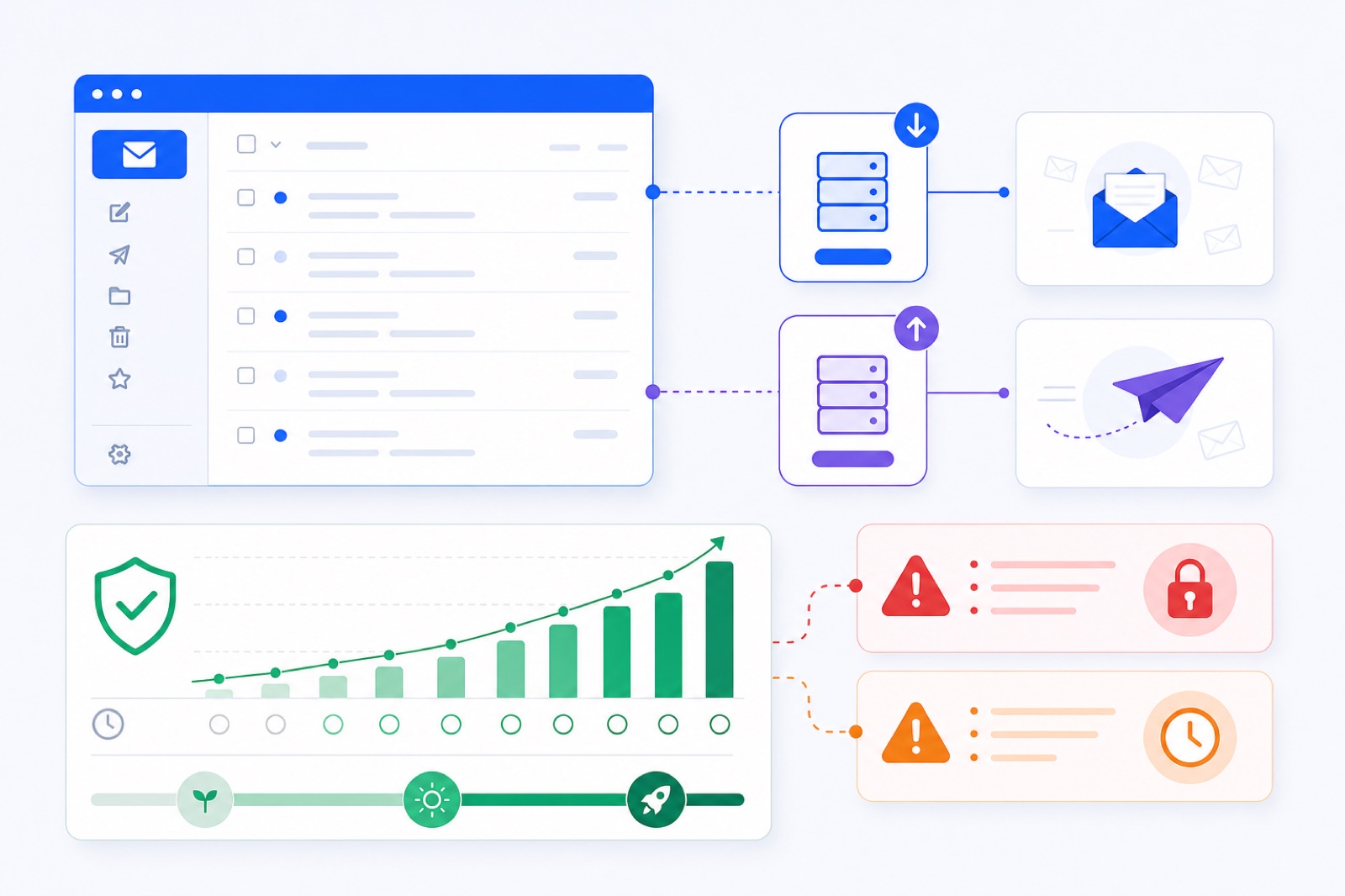
Yahoo Mail warm-up should start at 3 emails per day and stay conservative for at least 14 days. If you retry bad logins, skip app passwords, or jump to campaign volume, Yahoo may return temporary errors or lock the account. This guide gives the settings, ramp, DNS checks, outreach limits, and recovery steps.
Yahoo does not publish one simple warm-up limit for every mailbox. Treat any temporary error as a throttle signal, not a problem to overpower. If you want the wider ramp logic first, compare this with our 14-day and 28-day email warm-up schedule. For the tool path, BobWork Email Warm-up supports Yahoo Mail over IMAP with an app password, and the free warm-up tool starts low by default.
Why does Yahoo lock accounts?
Most Yahoo lockouts start before deliverability matters. They happen at the account-access layer.
Yahoo may challenge or block access when it sees repeated failed logins, unusual access patterns, old saved passwords, or too many connection attempts from third-party apps. If a warm-up tool keeps retrying with the wrong password, the mailbox can move from one failed login to a temporary access problem.
That is why Yahoo warm-up starts with authentication hygiene. Do not paste your normal Yahoo password into third-party software. Use an app password made for mail access. Then connect once, test IMAP and SMTP, and avoid repeated manual reconnects.
Temporary send errors can also appear when the mailbox is asked to send too quickly. Slow down first. Then fix the specific access or sending issue.
Common causes include:
- wrong Yahoo password instead of an app password
- an expired or revoked app password
- too many failed IMAP or SMTP attempts
- a sudden jump in sent volume
- sending from a new location or tool
- DNS records that fail authentication
- user complaints or spam-folder placement
- list quality problems during real outreach
Do not solve these with more retries. Pause the mailbox, identify the layer, and restart lower.
How do you connect Yahoo safely?
Yahoo warm-up needs two working parts: IMAP for receiving and SMTP for sending. IMAP lets the tool see warm-up mail that lands in Spam. SMTP lets the mailbox send warm-up messages.
Use Yahoo’s current help pages when you connect. Yahoo documents its IMAP and SMTP server settings, and it also documents third-party app passwords. Check those pages before changing ports or security settings.
Create one app password
Open Yahoo Account Security and generate an app password for the mail connection. Name it clearly, such as “Warm-up IMAP SMTP,” so you can revoke only that connection later.
Copy it once and store it securely. Use that app password in the warm-up tool. Do not use your normal Yahoo account password.
If the connection fails, do not generate five more passwords immediately. First confirm the mailbox address, server names, ports, encryption, and whether you copied a hidden space.
Use Yahoo IMAP and SMTP
Use the Yahoo Mail preset if your tool has one. If you enter settings manually, use Yahoo’s official current settings.
| Setting | Value to enter | Why it matters |
|---|---|---|
| IMAP server | imap.mail.yahoo.com | Receives and checks warm-up mail |
| IMAP port | 993 with SSL | Secures inbox access |
| SMTP server | smtp.mail.yahoo.com | Sends warm-up mail |
| SMTP port | 465 with SSL, or 587 with TLS | Secures sending access |
| Username | Full Yahoo email address | Prevents account mismatch |
| Password | Yahoo app password | Avoids normal-password login failures |
Use one connection path at a time. If you test the same mailbox in several tools, Yahoo may see multiple new clients at once. That increases the chance of challenges.
Start with one mailbox
One Yahoo mailbox is enough to start in a shared warm-up network. BobWork uses a shared warm-up network by default, or a private pool per account if you prefer. Private pool mode needs at least two mailboxes because only your own mailboxes write to each other.
For Yahoo, start with the shared network unless you have a reason to isolate addresses. A wider peer set avoids the pattern of only the same two mailboxes writing to each other.
In BobWork, Yahoo connects through IMAP and an app password. Warm-up starts at 3 emails per day, increases by 2 per day, and caps at 30 per day unless you edit the mailbox cap. Weekends run at 30% volume. Sends are spread between 09:00 and 18:00 in the mailbox time zone.
What Yahoo Email Warm Up ramp works?
Use a slower ramp than your ambition. The mailbox needs time to show normal activity, receive replies, and recover from early spam placement.
Use this operating plan. If Yahoo shows a temporary error, follow the error column instead of forcing the planned number.
| Period | Warm-up volume | Real outreach | If Yahoo shows errors |
|---|---|---|---|
| Days 1–3 | 3–7/day | 0/day | Stop retries, check app password |
| Days 4–7 | 9–15/day | 0–5/day only if needed | Hold volume for 48 hours |
| Days 8–14 | 17–29/day | Up to 10–20/day | Reduce cap by 50% |
| Days 15–28 | 10–30/day | Typically 20–40/day | Pause outreach first |
| During campaigns | 10–15/day | Typically 30–50/day max | Pause above 5% warm-up spam rate |
| Weekends | 30% of weekday warm-up | Avoid large sends | Let the account rest |
Do not treat the warm-up cap as a target. A cap of 30 means the tool will not exceed 30. It does not mean every Yahoo mailbox should send 30 warm-up messages forever.
The safest campaign pattern is steady. Warm-up keeps running at 10–15 emails per day. Real outreach stays in a narrow band. You add more mailboxes when you need more volume.
BobWork’s engine also adds spacing. A pair never writes to each other twice within three hours. Peers on a different domain or provider are picked more often. About 40% of received warm-up mail gets a reply, and threads end after three messages.
The content is plain text office talk. It has no links and no images. Yahoo should not see your warm-up traffic as a link distribution system.
What DNS should you check?
Yahoo’s sender best practices require SPF and DKIM, DMARC at least p=none and passing, domain alignment, a valid PTR, low complaint rates, and unsubscribe handling for bulk mail.
Yahoo lists a spam rate under 0.3%. Treat that as a ceiling, not a goal. For Gmail, Google says to keep complaint rate under 0.1% and never above 0.3%. The practical rule is simple: complaints must be rare.
Check these records before you warm up for outreach:
| Record | Minimum target | How to check |
|---|---|---|
| SPF | Sending service included | Use the SPF checker |
| DKIM | Passing signature for your sender | Use the DKIM checker |
| DMARC | At least p=none | Use the DMARC checker |
| Alignment | From domain aligned with SPF or DKIM | Check headers on a test email |
| PTR | Valid reverse DNS for sending infrastructure | Check provider documentation |
| Unsubscribe | One-click for bulk where required | Follow RFC 8058 for one-click |
If you use plain @yahoo.com, you do not publish DNS for yahoo.com. Yahoo controls that domain. You still control behaviour: volume, content, recipients, replies, bounces, and complaints.
If you send from your own domain through another platform, DNS becomes your responsibility. Read our SPF, DKIM and DMARC guide before you add campaign volume.
How should you handle errors?
A Yahoo temporary error is a stop sign. It is not an invitation to hammer the login or SMTP endpoint.
First, identify where the error happens. IMAP errors affect receiving and spam rescue. SMTP errors affect sending. Account-security errors affect both. The fix depends on the layer.
If IMAP fails, pause the mailbox in your warm-up tool. Confirm the app password still exists. Check the IMAP server, port 993, SSL, username, and mailbox access in Yahoo. Then reconnect once.
If SMTP fails, do not keep sending. Confirm smtp.mail.yahoo.com, the selected secure port, and the app password. Then reduce the daily cap. A mailbox that failed at 25/day may behave normally at 8/day.
If Yahoo flags the account, sign in directly in a browser. Complete any challenge from Yahoo. Review recent activity. Revoke old app passwords you do not recognise. Then create a fresh app password for the one tool you plan to use.
Use this recovery sequence:
- Pause warm-up and campaigns.
- Stop automatic retries.
- Sign in to Yahoo in a browser.
- Complete account-security checks.
- Verify or recreate the app password.
- Reconnect IMAP and SMTP once.
- Restart at 3–5 warm-up emails per day.
- Wait 48 hours before raising the cap.
Do not keep a failing mailbox in an outbound campaign. A campaign tool may keep trying contacts while warm-up is blocked. That mixes access problems with reputation problems.
If the mailbox was also landing in spam, fix that separately. Our guide to why emails go to spam covers authentication, content, lists, and sending behaviour.
When can outreach start?
Warm-up and outreach are different signals. Warm-up can create normal send-receive activity, but real recipients decide whether your campaign looks wanted.
Do not send a large campaign on day one after warm-up starts. Wait until the mailbox has at least 14 days of warming, low recent spam placement, and enough received mail to judge the pattern.
BobWork marks a mailbox ready for outbound only after 14 or more days warming, a 7-day spam rate of 10% or lower, and at least 30 warm-up emails received. That is a gate, not a guarantee.
During campaigns, keep warm-up running at 10–15 per day. This keeps normal mailbox activity present while real outreach happens. Do not raise warm-up and cold email volume at the same time. Change one variable, then watch results.
Use conservative cold email limits:
- new or recently recovered Yahoo mailbox: 5–10 real emails per day
- warmed, stable mailbox: typically 20–40 per day
- upper daily range: typically 30–50 per mailbox
- if you need more: add mailboxes, not more volume
- if spam rate rises above 5%: pause for a few days
Also watch content. Yahoo is strict about unwanted bulk mail. Avoid link-heavy first emails, attachments, misleading subject lines, and scraped lists. Use plain copy, a real identity, and a clear way to opt out.
For broader sending limits, compare this with how many cold emails per day is safe. The mailbox number is only one part of the system. Complaint rate, bounces, replies, and list quality matter more.
If you use one-click unsubscribe for bulk messages, implement it correctly. The technical standard is RFC 8058. Yahoo’s sender guidance also says to honour unsubscribes within two days.
Do this now
Use this checklist before you connect a Yahoo account, especially if it has already shown temporary errors.
| Step | Action | How to verify |
|---|---|---|
| 1 | Sign in to Yahoo in a browser | No security challenge remains |
| 2 | Generate one app password | Yahoo shows a new app password label |
| 3 | Connect IMAP on port 993 SSL | Inbox test succeeds |
| 4 | Connect SMTP on 465 SSL or 587 TLS | Test send succeeds |
| 5 | Start at 3/day | Warm-up dashboard shows first sends |
| 6 | Keep outreach off for 7 days | No campaign sends from the mailbox |
| 7 | Check SPF, DKIM and DMARC | All records pass for your sending domain |
| 8 | Watch spam placement | 7-day warm-up spam rate stays low |
| 9 | Add outreach gradually | Daily sends stay in the planned range |
| 10 | Pause on errors | No repeated failed login attempts appear |
The verification column matters. Do not mark a step complete because it sounds right. Confirm it in the mailbox, DNS, or warm-up dashboard.
BobWork checks SPF, DKIM and DMARC daily per domain. It also measures spam placement directly inside receiving mailboxes, rather than using third-party seed lists. Warm-up mail found in Spam is moved to Inbox, marked read, labelled “Warm-up”, and archived after 24 hours.
Only mail carrying the engine’s own hidden header is touched. Real mail is never read, moved, or answered.
Review the mailbox weekly:
- Is the app password still valid?
- Did Yahoo show any temporary errors?
- Is warm-up spam rate under control?
- Did real outreach bounce or complain?
- Did you raise volume too quickly?
- Are DNS records still passing?
- Are unsubscribe requests being honoured?
If you manage several sender accounts, avoid making the same change everywhere on the same day. Stagger changes. If one mailbox hits a throttle, you will know what caused it.
BobWork Email Warm-up fits this workflow because it is free for up to 10 mailboxes, needs no credit card, and uses a conservative ramp by default. Connect Yahoo with an app password, keep the cap low, and let the mailbox prove itself before you send campaigns.
Frequently asked questions
How long does Yahoo email warm up take?
Use at least 14 days for an existing Yahoo mailbox. Use 3–4 weeks for a new address, a new sending domain, or any mailbox that recently showed temporary errors or lockouts.
Do I need a Yahoo app password?
Yes, for third-party IMAP and SMTP connections you should use a Yahoo app password, not your normal account password. Generate it in Yahoo account security, then paste it into the warm-up tool.
Why does Yahoo show a temporary error?
Yahoo can show temporary errors after suspicious login attempts, repeated authentication failures, connection bursts, or provider-side throttling. Stop retries, confirm the app password and server settings, then wait before reconnecting.
Can I send cold email from Yahoo Mail?
You can send low-volume, compliant outreach, but keep volume conservative. Use SPF, DKIM and DMARC on your sending domain, include unsubscribe handling for bulk mail, and avoid purchased lists.
What daily volume is safe for Yahoo warm-up?
Start around 3 warm-up emails per day and increase slowly. During real campaigns, keep warm-up around 10–15 per day and keep real outreach typically under 30–50 emails per mailbox per day.
Does warm-up guarantee inbox placement?
No. Warm-up can build normal sending patterns and find spam placements, but inbox placement also depends on consent, list quality, DNS, complaint rate, content, and recipient engagement.
Should I reconnect immediately after a lockout?
No. Repeated reconnect attempts can extend the problem. Stop the tool, check Yahoo account security, confirm the app password, wait for the temporary block to clear, then restart at a lower cap.
Warm up your mailboxes free
Connect Gmail, Google Workspace, Zoho or Lark. Your mailboxes warm on a shared network, or in a private pool of your own, starting today.