 Email Warm-up
How to Warm Up a Gmail Account for Free in 2026
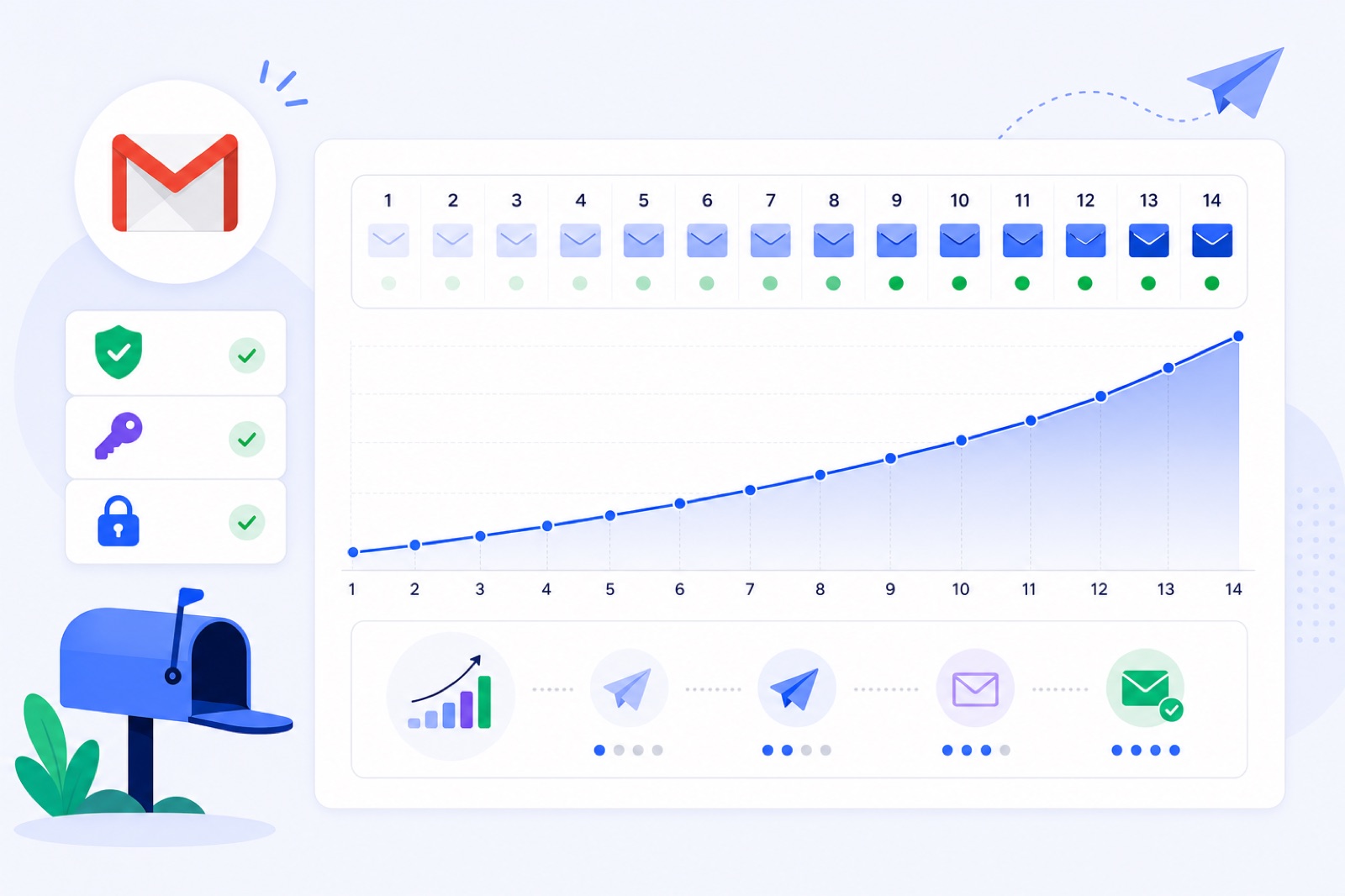
To warm up a Gmail account for free, run at least a 14-day ramp from 3 emails per day toward 30, then scale only if spam landings stay low. Skip the ramp and Gmail may restrict sending before you reach any published account limit. This guide covers setup, DNS records, daily volume, readiness checks, and fixes.
If you want the practical route, connect your Gmail or Google Workspace mailbox to the free warm-up tool. BobWork Email Warm-up runs a shared network by default; switch the account to Private pool and only your own mailboxes write to each other.
Use Gmail carefully. A personal Gmail account is not a sending platform. Google publishes account limits, but new accounts can be limited far below headline numbers. Treat the first two weeks as reputation setup, not as a way to start campaigns early.
What does Gmail watch?
Gmail does not decide inbox placement from one factor. It looks at authentication, sending behaviour, recipient engagement, complaints, content, and account trust.
For a personal Gmail address, Google controls domain-level authentication because you send from gmail.com. Your job is to look like a normal sender: slow volume, real replies, no sudden campaign spikes, no suspicious links, and no repeated copy-paste messages.
For Google Workspace on your own domain, you control DNS. SPF, DKIM, and DMARC matter. Without them, Gmail and other providers have fewer reasons to trust your mail.
Google’s public Gmail sender guidance says senders should authenticate mail, avoid impersonation, and keep reported spam rates low. For bulk senders, Google says to keep spam rates under 0.1% and avoid reaching 0.3% or higher. Bulk senders also need easy unsubscribe, including one-click unsubscribe for subscribed messages.
Those requirements are not warm-up tricks. They are baseline sending hygiene. Warm-up cannot fix an unauthenticated domain, a list that did not consent, or a campaign that gets complaints.
| Signal | What Gmail may see | Safe practice |
|---|---|---|
| Account age | A new account with little history | Start at 3/day and ramp slowly |
| Volume changes | Sudden jumps from zero to campaigns | Increase gradually over 14+ days |
| Replies | Whether recipients answer | Use warm-up threads and real conversations |
| Spam placement | Mail going to Spam | Pause the mailbox for a few days above 5% spam rate |
| Authentication | SPF, DKIM, DMARC for custom domains | Publish and verify before campaigns |
| Complaints | User spam reports | Keep complaint rate under 0.1%; never near 0.3% |
| Content | Links, tracking, repeated templates | Start plain text and reduce risky links |
| Sending pattern | Bursts at odd hours | Spread sending during working hours |
For more background, read why emails go to spam. It covers common causes without treating warm-up as a cure-all.
How do you connect Gmail?
BobWork Email Warm-up supports Gmail and Google Workspace in two ways: Google sign-in or IMAP with an app password. Both routes can work. Pick the one your account allows.
One mailbox is enough on the shared network. In private-pool mode you need at least two, and your Gmail account exchanges warm-up mail only with mailboxes you added to the same BobWork account.
The engine starts at 3 emails per day, adds 2 per day, and caps at 30 per day by default. You can edit the cap per mailbox, up to 100. For Gmail, do not rush to the maximum. Keep warm-up at 10–15/day during active campaigns unless you have a clear reason to increase.
About 40% of received warm-up mail gets a reply. Threads end after three messages. Content is plain office talk: plain text, no links, no images, and first-name greetings. The exact engine behaviour is published on our strategy page.
Warm-up mail found in Spam is moved to Inbox, marked read, labelled “Warm-up”, and archived after 24 hours. Only mail carrying the engine’s hidden header is touched. Real mail is never read, moved, or answered.
Route 1: Google sign-in
Use this route if you want the simplest Gmail connection.
- Go to emailwarmup.bobwork.ai.
- Sign in with an email code. There is no password.
- Add a mailbox.
- Choose Google sign-in.
- Select the Gmail or Google Workspace account.
- Approve the requested access.
Google may show an unverified-app notice. BobWork uses the gmail.modify scope, and Google shows that notice because the CASA audit has not been completed. If you do not want to approve that screen, use the app-password route.
Route 2: App password and IMAP
Use this route if you prefer a mail-client style connection.
First, turn on 2-Step Verification in your Google account. Then create an app password. Google’s app-password feature is available only when the account is eligible. It may be unavailable with some security settings, admin policies, or Advanced Protection.
Next, enable IMAP in Gmail:
- Open Gmail.
- Click the gear icon.
- Choose See all settings.
- Open Forwarding and POP/IMAP.
- Under IMAP access, choose Enable IMAP.
- Save changes.
Then connect the mailbox in BobWork with IMAP using the app password. Do not use your normal Google password.
Google’s own docs are the best source for account-specific changes: Gmail sending limits, app passwords, and sender guidelines.
Which DNS records matter?
This depends on what you mean by Gmail.
If you use a personal @gmail.com address, you cannot publish SPF, DKIM, or DMARC for gmail.com. Google controls that domain. Your job is to protect the account, send slowly, avoid spammy content, and avoid using a personal inbox as a bulk sender.
If you use Google Workspace with your own domain, set DNS before serious outreach. Use the same From domain consistently, and avoid sending campaigns before SPF, DKIM, and DMARC are visible.
SPF for Google Workspace
Create or update one TXT record at your root domain:
| Record | Host | Value | Notes |
|---|---|---|---|
| SPF | @ | v=spf1 include:_spf.google.com ~all | Use one SPF record only |
If another sender already uses your domain, merge includes into one SPF record. Do not create two SPF TXT records. Multiple SPF records can break authentication.
Check the current record with the free SPF checker.
DKIM for Google Workspace
In Google Admin Console, generate a DKIM key for the domain. The selector is commonly google. Then publish the TXT record Google gives you.
| Record | Host | Value | Notes |
|---|---|---|---|
| DKIM | google._domainkey | Google-generated TXT value | Generate inside Admin Console |
After DNS propagates, return to Admin Console and start authentication. Google’s documentation for setting up DKIM has the current menu details.
You can verify the published selector with the free DKIM checker.
DMARC for Gmail sending
Add DMARC after SPF and DKIM pass. Start with monitoring if you are unsure.
| Record | Host | Value | Notes |
|---|---|---|---|
| DMARC | _dmarc | v=DMARC1; p=none; rua=mailto:dmarc@yourdomain.com | Start in monitor mode |
Later, move toward quarantine or reject once legitimate senders pass. Do not jump to strict enforcement until you know every real sender is aligned.
Check the record with the free DMARC checker.
What 14-day ramp works?
For an existing Gmail or Workspace mailbox, use at least 14 days. For a new domain, use 3–4 weeks. Gmail cares about consistency, so the ramp should look boring.
The table below shows the BobWork default if you start on a Monday. Weekends run at about 30% of the normal daily target. Sending is spread between 09:00 and 18:00 in the mailbox’s own time zone, with random timing decisions every 15 minutes.
| Day | Warm-up target | Real outreach | What to watch |
|---|---|---|---|
| 1 | 3 | 0 | Connection works; replies begin later |
| 2 | 5 | 0 | No login or permission errors |
| 3 | 7 | 0–5 manual emails | Mail lands in Inbox, not Spam |
| 4 | 9 | 0–5 manual emails | Replies and normal thread activity |
| 5 | 11 | 5–10 manual emails | No bounce or block warnings |
| 6 | About 4 | 0 | Weekend reduction applies |
| 7 | About 5 | 0 | Keep account quiet |
| 8 | 17 | 5–10 | Check 7-day spam trend |
| 9 | 19 | 10–15 | Keep copy plain and varied |
| 10 | 21 | 10–15 | Avoid link-heavy messages |
| 11 | 23 | 10–20 | Watch replies and spam landings |
| 12 | 25 | 10–20 | Confirm DNS stays valid |
| 13 | About 8 | 0–5 | Weekend reduction applies |
| 14 | About 9 | 0–5 | Review readiness metrics |
After day 14, do not jump to the highest Gmail limit you can find. For real outreach, a typical safe range is 30–50/day per mailbox after warm-up, assuming list quality is good and complaint rates stay low. Add mailboxes rather than forcing one Gmail account to carry the whole campaign.
If you want to plan a custom ramp, use the free warm-up schedule generator. If this is your first mailbox, first time warming up your email explains what early results usually mean.
How do you avoid blocks?
Gmail blocks are usually behaviour problems, authentication problems, or access problems. Fix the cause instead of clicking retry all day.
| Problem | Likely cause | Fix |
|---|---|---|
| Google unverified-app screen | Google sign-in route uses gmail.modify | Continue only if comfortable, or use IMAP app password |
| App password missing | 2-Step Verification not enabled or account not eligible | Enable 2-Step Verification or use Google sign-in |
| IMAP login fails | IMAP disabled or wrong password type | Enable IMAP and use the app password |
| Sending slows or stops | Gmail risk controls or account limits | Reduce volume and wait a few days |
| Warm-up spam rate rises | Gmail is placing warm-up mail in Spam | Pause the mailbox above 5% for a few days |
| DNS fails | Missing Workspace SPF, DKIM, or DMARC | Fix records before outreach |
| Campaigns hit Spam | Content, complaints, or poor list quality | Reduce volume and remove risky copy |
Do not treat published Gmail limits as targets. Google says accounts have sending limits, but new accounts can be restricted earlier. A new personal Gmail account that sends hundreds of similar emails can look abusive even if it is technically below a published limit.
Keep campaigns plain at first. Avoid URL shorteners, image-only messages, heavy tracking, attachments, and repeated templates. Use one clear call to action. Stop sending to people who do not engage.
If you send subscribed or bulk mail to Gmail recipients, follow Google’s bulk-sender requirements. Authenticate mail, publish DMARC, support easy unsubscribe, and keep spam complaints under 0.1%. Never let complaint rate reach 0.3%.
Warm-up helps with mailbox activity. It does not repair bad targeting. If your list is scraped, stale, or irrelevant, Gmail users will ignore or report you. That signal can override a tidy ramp.
Do this now
Use this checklist before you send any campaign from Gmail. It covers both personal Gmail and Google Workspace.
| Step | Action | How to verify |
|---|---|---|
| 1 | Decide if this is personal Gmail or Workspace | Personal addresses end in @gmail.com; Workspace uses your domain |
| 2 | Connect your mailboxes | BobWork shows each mailbox as active, not blocked |
| 3 | Choose Google sign-in or app password | Google sign-in completes, or IMAP login succeeds |
| 4 | Enable IMAP if using app password | Gmail settings show IMAP enabled |
| 5 | Add SPF for Workspace | SPF checker returns one valid SPF record |
| 6 | Enable DKIM for Workspace | DKIM checker finds the google selector |
| 7 | Add DMARC for Workspace | DMARC checker finds _dmarc |
| 8 | Run the 14-day ramp | Mailbox has 14+ days of warm-up history |
| 9 | Keep real outreach low | Daily sends stay in the planned range |
| 10 | Watch spam rate | 7-day spam rate stays at or below 3% before scaling |
| 11 | Pause if spam rises | Pause the mailbox for a few days above 5% spam rate |
| 12 | Check complaints | Google Postmaster Tools or campaign data shows no complaint spike |
BobWork measures spam landings directly in the receiving mailbox. It does not use third-party seed lists. That matters because you are seeing what happened inside the inboxes that exchange warm-up mail with yours.
You can also compare the free approach with other options in free email warm-up tools or read the broader free email warm-up guide.
When is Gmail ready?
A Gmail account is ready for cautious outbound when three conditions are true: it has warmed for at least 14 days, its 7-day spam rate is 3% or lower, and it has received at least 30 warm-up emails.
Those are BobWork’s readiness checks. They are not a guarantee of inbox placement. They are a practical floor for starting small.
When you begin outreach, keep warm-up running at 10–15/day. Send real email in small batches. For a warmed mailbox, 30–50 real outreach emails per day is a typical upper working range, not a promise. If replies are weak or complaints rise, reduce volume.
Use more mailboxes instead of pushing one Gmail account harder. Gmail tends to react badly to sudden volume changes. Several healthy mailboxes at moderate volume are safer than one account trying to do everything.
For a personal Gmail account, be more conservative. It is useful for manual networking and light outreach. It is not a bulk cold-email engine. If you need predictable business sending, use a properly configured domain and Google Workspace or another provider.
If you are ready to start, add two Gmail mailboxes to BobWork Email Warm-up. It is free, has no credit card and no time limit, and supports up to 20 mailboxes per account. Use Google sign-in if you accept the unverified notice, or use IMAP with an app password.
Frequently asked questions
How long does Gmail warm-up take?
Use at least 14 days for an existing Gmail or Google Workspace mailbox. Use 3–4 weeks for a new domain or a brand-new sender identity. Keep the ramp slower if warm-up mail starts landing in Spam.
Can I warm up a personal Gmail account?
Yes, but keep volume low. Personal Gmail is not built for high-volume cold outreach. Google publishes daily limits, but new accounts can be restricted far below those limits until they build normal behaviour.
Do I need SPF, DKIM and DMARC for Gmail?
For a personal @gmail.com address, Google controls the domain authentication. For Google Workspace on your own domain, publish SPF, enable DKIM in Admin Console, and add a DMARC record.
Why does Google show an unverified app notice?
BobWork Email Warm-up uses the gmail.modify scope for Google sign-in. Google shows an unverified-app notice because the CASA audit has not been completed. You can use the IMAP app-password route instead.
Should I use Gmail app passwords or Google sign-in?
Use Google sign-in if you are comfortable approving the unverified-app notice. Use IMAP with an app password if you prefer the mail-client route. App passwords require 2-Step Verification and may be unavailable on some accounts.
When is my Gmail account ready for outreach?
In BobWork, a mailbox is ready after 14+ days warming, a 7-day spam rate of 3% or less, and at least 30 warm-up emails received. Keep real outreach to modest daily volume after that.
Can warm-up guarantee Gmail inbox placement?
No. Warm-up can create normal sending and reply patterns, but Gmail placement also depends on content, complaints, authentication, list quality, and recipient engagement. Avoid any tool that promises guaranteed inbox placement.
Warm this mailbox up for free
Connect it in a minute. It warms on the shared network or in your own private pool, ramps 3 to 30 a day, and the dashboard tells you when you are ready.