 Email Warm-up
Warm Up Health Score: Why Your Mailbox Is Red
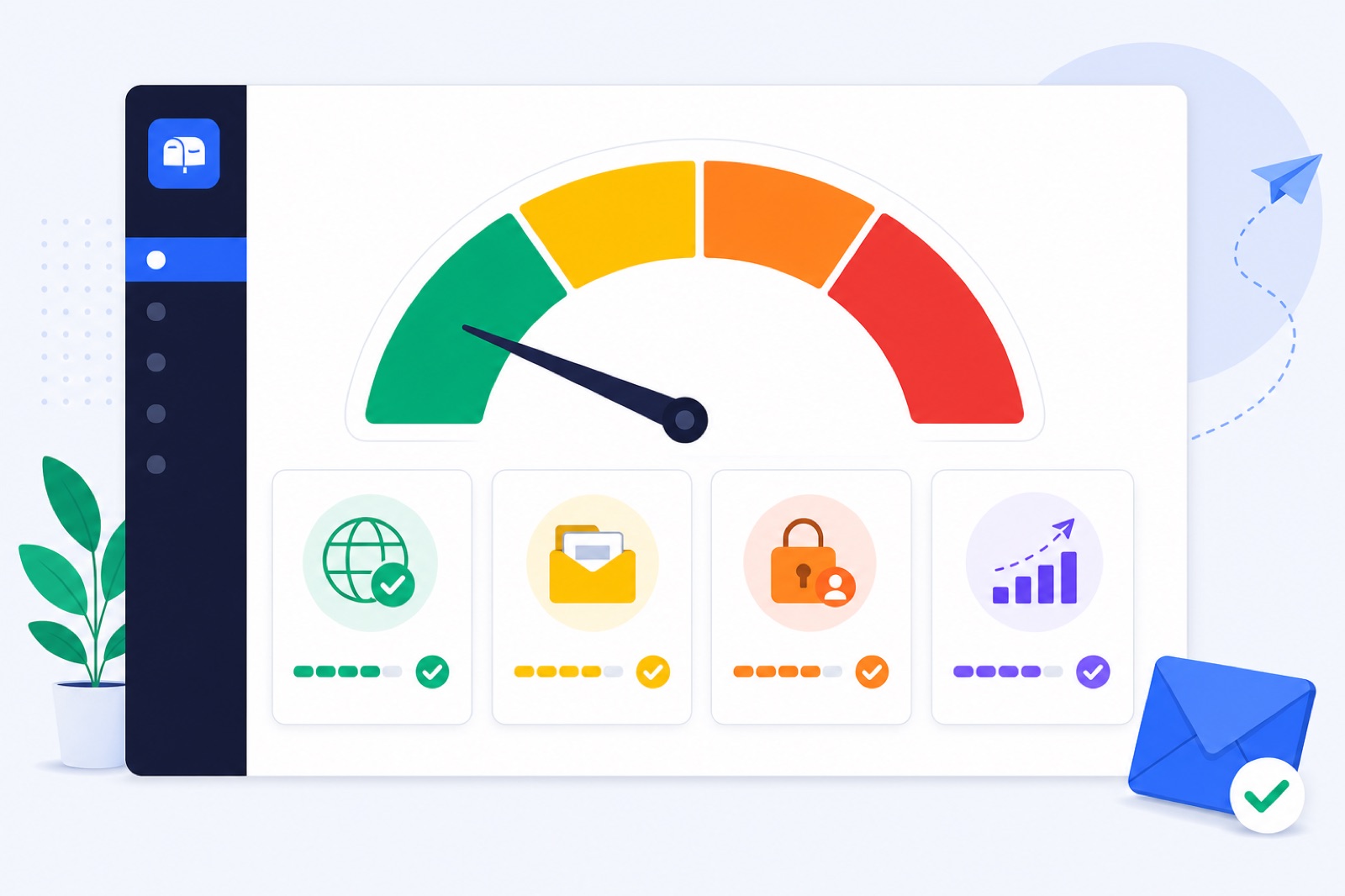
A red mailbox means either the health score is below 60 or the mailbox is Blocked by a login or permission failure. If you ignore it, warm-up may stop helping while real campaigns keep adding bad signals. This guide shows how to read each state, fix the right cause, and know when to send again.
Before you change settings, separate delivery risk from access failure. A mailbox that cannot log in needs a different fix from one landing in spam. If you are new to the process, start with what to expect during first warm-up so the normal ramp does not look like a fault.
What does red mean?
A red state means one of two things: At risk or Blocked.
At risk is a delivery warning. The mailbox is still connected, but recent warm-up performance is poor. In BobWork Email Warm-up, At risk means the health score is below 60.
Blocked is an access warning. The engine cannot log in or no longer has permission. It is not a spam score. Warm-up cannot run properly until the connection is repaired.
Treat Blocked first. A broken app password, revoked OAuth permission, closed IMAP access, or failed SMTP login prevents useful warm-up activity. DNS changes will not fix that.
Treat At risk after access is working. The mailbox is connected, but receiving mailboxes are finding too much of its warm-up mail in Spam. Reduce pressure, check authentication, and let the 7-day window improve.
How does a warm up health score work?
The health score is a 0–100 view of recent warm-up status. It shows whether a mailbox is safe to keep warming and whether it is approaching readiness for outbound.
| State | Score or rule | What it means | First move |
|---|---|---|---|
| Healthy | 85–100 | Warm-up is running and recent spam placement is low | Keep the current ramp |
| Watch | 60–84 | The mailbox needs attention, but is not failing | Check spam rate and DNS |
| At risk | 0–59 | Recent warm-up signals are poor | Pause or reduce outbound, then diagnose |
| Blocked | Login or permission failed | Warm-up cannot access the mailbox | Fix the connection before anything else |
The spam rate behind the score is the share of a sender’s warm-up mail that receiving mailboxes found in Spam over 7 days. That matters because it evaluates your mailbox as the sender, not just what arrives in your inbox.
BobWork measures spam landings directly in receiving mailboxes. It does not use third-party seed lists for this metric.
The engine also rescues only its own warm-up mail. If warm-up mail lands in Spam, it is moved to Inbox, marked read, labeled “Warm-up”, and archived after 24 hours. Only mail carrying the engine’s hidden header, or a known subject for Zoho API senders, is touched. Real mail is never read, moved, or answered.
Use the score as a diagnostic signal, not a guarantee. It cannot promise inbox placement for cold campaigns. It tells you whether recent warm-up traffic is behaving normally.
Which numbers matter first?
Most red mailbox fixes start with a short list of numbers. Check these before rewriting copy, replacing domains, or changing every setting at once.
| Metric | Good or target range | Warning range | Action threshold |
|---|---|---|---|
| Health score | 85–100 | 60–84 | Below 60 is At risk |
| Blocked status | Not blocked | n/a | Any login or permission failure needs repair |
| Warm-up age | 7+ days for existing domains | Under 7 days | Do not judge readiness too early |
| New domain warm-up | 2–3 weeks typically | Under 14 days | Keep volume low and consistent |
| 7-day spam rate | 10% or less for readiness | Rising above normal | Pause a mailbox above 5% for a few days |
| Received warm-up mail | 30+ in 7 days for readiness | Under 30 | Keep warming before outbound |
| Warm-up volume | Starts at 3/day, +2/day | n/a | Cap is 30/day by default, editable to 100 |
| Campaign warm-up level | 10–15/day during campaigns | Higher during poor placement | Lower if spam rate rises |
| Real outreach | Typically 30–50/day per mailbox | Higher than 50/day | Add mailboxes rather than pushing one |
| Gmail complaint rate | Keep under 0.1% | Near 0.3% | Never above 0.3% |
| Yahoo spam rate | Under 0.3% | Near 0.3% | Reduce complaints and fix list quality |
Google’s sender guidelines say senders should keep spam complaint rates below 0.10% and avoid ever reaching 0.30% or higher. Yahoo’s sender guidance lists a spam-rate threshold under 0.3% for bulk senders. Microsoft’s Outlook.com rules require SPF, DKIM and DMARC alignment for domains sending more than 5,000 messages per day to Outlook.com consumer mailboxes.
Use those thresholds as guardrails. They are not a warm-up score by themselves. A mailbox can have correct DNS and still perform badly if your list, offer, copy, or sending pattern creates complaints.
Primary references: Google email sender guidelines, Yahoo sender best practices, and Microsoft sender requirements.
Use this checklist after you read the numbers. Change one thing at a time so you know what moved the score.
| Step | Action | How to verify |
|---|---|---|
| 1 | Read the exact red state: At risk or Blocked | Dashboard shows health band or Blocked status |
| 2 | If Blocked, log in to webmail directly | Webmail opens without a security challenge |
| 3 | Recreate the app password or API permission | IMAP, SMTP, OAuth, or API test passes |
| 4 | If At risk, check the 7-day spam rate | Spam rate is visible for the sender mailbox |
| 5 | Pause or reduce cold campaigns | No campaign sends leave that mailbox during recovery |
| 6 | Lower warm-up pressure if needed | Mailbox cap is reduced, often to 10–15/day during campaigns |
| 7 | Check SPF, DKIM, and DMARC | DNS checks pass for the sending domain |
| 8 | Review recent volume changes | Daily sends match your intended ramp |
| 9 | Wait for the 7-day window | Health improves over several days, not minutes |
| 10 | Resume only after readiness gates pass | 7+ days warming, spam rate ≤10%, and 30+ warm-up emails received |
The order matters. If you fix DNS before reconnecting a Blocked mailbox, warm-up still cannot run. If you reconnect a mailbox but keep blasting the same campaign, the 7-day spam rate may stay poor.
How do you fix Blocked?
Blocked means the warm-up engine cannot reach the mailbox. It does not mean your domain is bad. It means the connection is broken.
Common causes include a changed mailbox password, a revoked app password, disabled IMAP, removed OAuth access, two-step verification changes, or a provider security lock.
Start with the mailbox provider. Log in through webmail. If the provider asks for identity confirmation, complete that first. Warm-up tools cannot solve an account security challenge from outside.
Then check the connection method.
For Gmail and Google Workspace, the recommended route in BobWork is IMAP with an app password. That needs 2-Step Verification. One-click Google sign-in also exists, but Google caps unverified apps at 100 users, BobWork has not completed the CASA audit, and Google shows an unverified-app notice. Workspace admins can mark the app as trusted in the Admin console.
For Yahoo Mail and iCloud Mail, use an app password. For Lark Mail, use IMAP with a mail-client password. For Zoho Mail, use the Zoho Mail API through a Self Client code on the free plan, or IMAP on Mail Lite and above.
For Amazon SES, SendGrid, and Mailgun, warm-up uses the platform’s SMTP credentials for sending plus a receiving inbox over IMAP. If either side fails, fix that side first.
Outlook and Microsoft 365 are not supported in BobWork Email Warm-up yet because Microsoft requires OAuth. If your red mailbox is an Outlook account, do not try to force password IMAP in BobWork. Use a provider that supports Microsoft OAuth, or wait for Outlook support.
After reconnecting, send a test from the dashboard if available. Then wait for the next warm-up cycle. Blocked should clear when login and permission checks pass.
How do you fix At risk?
At risk means the mailbox is connected, but recent placement is poor. Do not respond by increasing warm-up volume. More bad signals usually make the 7-day window worse.
First, stop adding pressure. Pause cold campaigns from that mailbox, or reduce them sharply. BobWork’s published practice is to pause a mailbox above a 5% spam rate for a few days. Keep warm-up around 10–15 per day during campaigns instead of pushing the cap.
Second, inspect recent changes. Red states often follow a change in volume, list source, campaign copy, domain records, mailbox password, or provider security status.
Third, check whether the mailbox is too new. Existing domains normally need at least 7 days of warm-up. New domains typically need 2–3 weeks before serious outbound. A new mailbox can look weak because it has not built enough normal activity yet.
Fourth, compare warm-up with real outbound. Warm-up messages are plain-text office-style notes. They contain no links and no images. About 40% of received warm-up mail gets a reply, and threads end after 3 messages.
If warm-up is fine but cold mail fails, the campaign is the likely issue. Look at targeting, personalization, claims, unsubscribe handling, and bounce rate. The cold email deliverability checklist is a better next step than changing the warm-up schedule.
If warm-up itself is landing in Spam, lower pressure and repair fundamentals. Check SPF, DKIM, DMARC, domain age, complaint risk, mailbox history, and whether the provider recently limited the account.
The free pool does this step automatically: it keeps sending normal warm-up conversations, detects when its own warm-up mail lands in Spam, and rescues those messages without touching real mail.
What DNS should you check?
A red health state often exposes a setup problem that was already there. SPF, DKIM, and DMARC are the first records to check.
SPF tells receivers which servers can send for your domain. Keep it to one SPF TXT record. Also remember the SPF 10-lookup limit. Too many included services can cause SPF to fail even when the record looks complete.
DKIM signs mail so receivers can verify that the message was authorized by your domain. BobWork checks common selectors daily, including google, zmail, default, selector1, selector2, k1, s1, mail, dkim, lark, feishu, and zoho.
DMARC tells receivers what to do when SPF or DKIM fails alignment. For Gmail and Yahoo bulk sending, you need DMARC at least at p=none. Yahoo also requires SPF and DKIM, plus a From domain aligned with SPF or DKIM.
Use the free DNS checks if you want a quick read: SPF checker, DKIM checker, and DMARC checker. For a deeper setup walkthrough, use SPF, DKIM and DMARC for cold email.
DNS is not the whole score. A domain can pass SPF, DKIM, and DMARC but still perform badly because people ignore or report the mail. But failed authentication is a simple problem to remove before judging anything else.
When can you send again?
Do not restart cold email because the color looks slightly better. Use a readiness gate.
In BobWork Email Warm-up, a mailbox is ready for outbound when it has warmed for at least 7 days, has a 7-day spam rate of 10% or less, and has received at least 30 warm-up emails. That is a minimum gate, not a reason to send unlimited volume.
For an existing domain, 7 days can be enough if the mailbox has good history and the score is healthy. For a new domain, 2–3 weeks is safer. New domains have less reputation, so they need a slower build.
When you restart, keep real outreach to a typical range of 30–50 emails per day per mailbox. If you need more volume, add mailboxes rather than pushing one mailbox harder. For domain planning, use how many mailboxes you need for cold email.
Keep warm-up running while sending. BobWork spreads sends across 09:00–18:00 in the mailbox’s own time zone, with randomness every 15 minutes. Weekends run at 30%, and a pair never writes to each other twice within 3 hours.
If you use a shared warm-up network, one mailbox is enough to start. BobWork uses a shared warm-up network by default, or a private pool per account if you prefer. Private pool mode is in Mailbox pool → Pool mode and needs at least two mailboxes.
Keep the score in context. Blocked means access. At risk means delivery signals. Watch means you should check the trend before it turns red. Healthy means warm-up is running well, not that every cold email will land in Primary.
If you want the tool to track these states for you, BobWork Email Warm-up is free, no card, and has no time limit for up to 3 mailboxes on new accounts. It supports a shared warm-up network by default, or a private pool per account, and shows health, spam rate, readiness, and daily SPF, DKIM, and DMARC checks in one place.
Frequently asked questions
Why is my mailbox red in warm-up?
A red mailbox usually means either At risk, with a health score below 60, or Blocked, where the login or permission check failed. Check the exact status before changing DNS or pausing campaigns.
Is Blocked the same as going to spam?
No. Blocked means the warm-up engine cannot access the mailbox because login, app password, OAuth or permission failed. Spam placement is measured separately as the 7-day spam rate.
What is a good warm-up health score?
In BobWork Email Warm-up, Healthy is 85 or higher. Watch is 60–84. At risk is below 60. A mailbox is ready for outbound after 7+ days warming, 7-day spam rate at or below 10%, and at least 30 warm-up emails received.
Should I stop cold email when the score turns red?
If the mailbox is At risk, pause or reduce outbound until the 7-day spam rate improves. If it is Blocked, fix access first. Warm-up cannot help while the tool cannot log in.
Can warm-up guarantee inbox placement?
No. Warm-up can create normal sending and reply activity, and it can measure spam landings in receiving mailboxes. It cannot override bad lists, weak targeting, broken authentication or high complaint rates.
How long does it take for a red mailbox to recover?
A login Blocked state can clear as soon as access is fixed and checked again. An At risk mailbox usually needs several days of lower sending because the spam rate is measured over a 7-day window.
Warm up your mailboxes free
Connect Gmail, Google Workspace, Zoho or Lark. Your mailboxes warm on a shared network, or in a private pool of your own, starting today.