 Email Warm-up
Done-for-You Cold Email Setup for 100, 250 or 500 Emails a Day
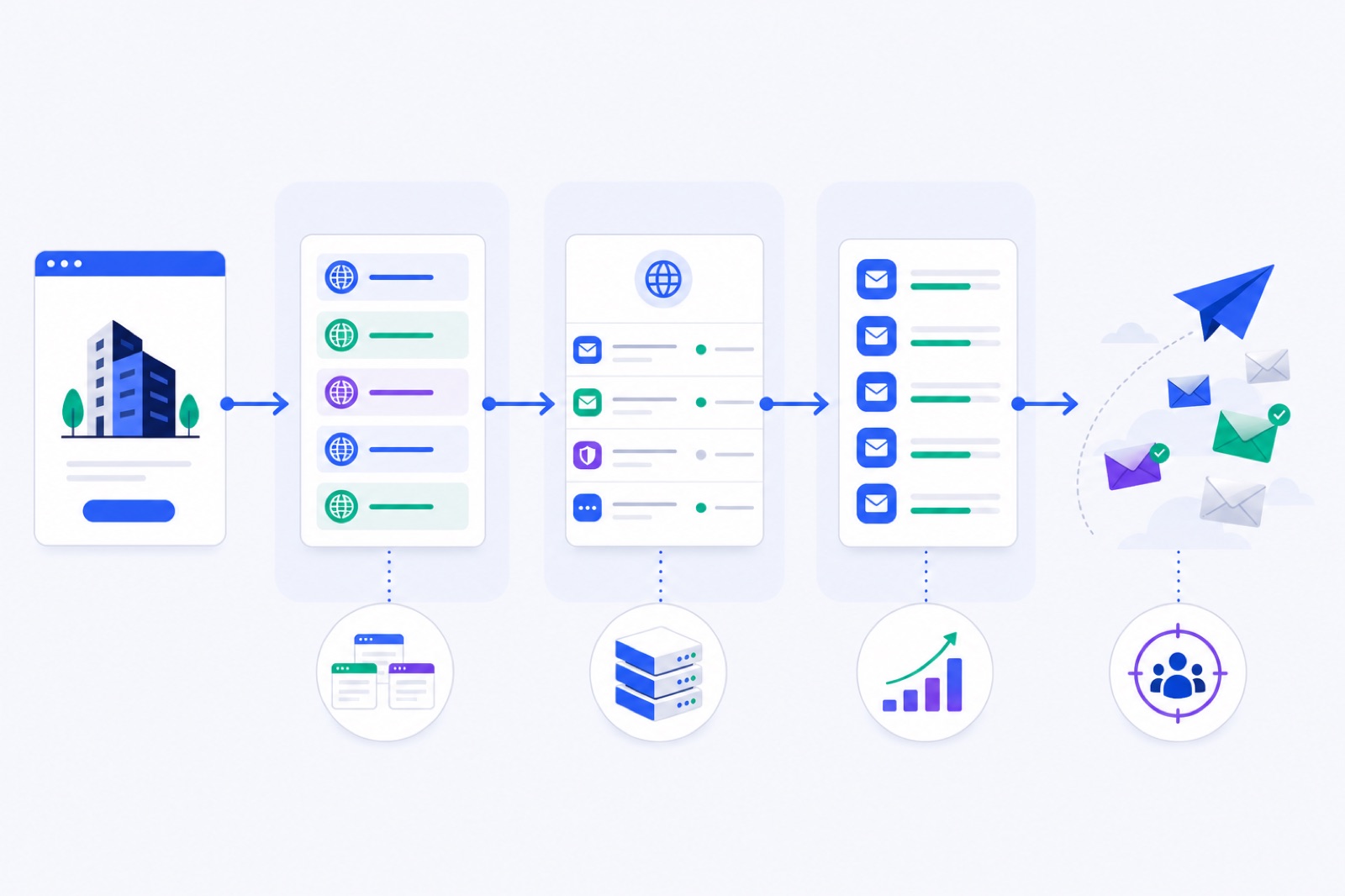
A done-for-you cold email setup should size everything around the real constraint: about 30 cold emails per new mailbox per day at first. Ignore that limit and you overload inboxes, buy too few domains, or send before trust exists. This guide shows what the setup includes, the 100/250/500-a-day math, and when DIY still wins.
If you want the manual version, start with the mailbox math in how many mailboxes you need for cold email, then pair it with how many domains you need. A done-for-you flow compresses those steps into one checkout, but the deliverability rules do not change.
What should a done-for-you cold email setup include?
A useful setup is not just buying inboxes. It should create the sending infrastructure, authenticate the domains, start warm-up, and stop the campaign from sending before the mailboxes are ready.
In BobWork Outbound, the done-for-you setup asks for your company name, sender name, and target daily volume: 100, 250, or 500 emails a day. The system sizes the infrastructure at 30 cold emails a day per new mailbox.
It then picks lookalike .com domains, such as getacme.com or tryacme.com, and creates hosted mailboxes on those domains. Each domain can have up to 3 mailboxes. SPF, DKIM, and DMARC are set up for you.
The mailboxes join warm-up before they send cold email. New mailboxes warm for 2–3 weeks before full volume. BobWork does not sell pre-warmed mailboxes, and you should avoid any setup that implies new infrastructure can safely send at full volume today.
After warm-up, the mailboxes attach to your Outbound campaign. Outbound sends from your own warmed mailboxes. The campaign builder supports CSV contacts, up to 4 steps, delays, and merge fields such as {{first_name}} or {{company|there}}.
Every email includes one-click unsubscribe through a List-Unsubscribe header and an unsubscribe link. Replies stop the sequence for that contact. Bounces and unsubscribes are suppressed for the account forever.
That is the line between infrastructure and campaign quality. Setup gets the sending system ready. Your targeting, offer, copy, and reply handling still decide whether people want the email.
How many domains and mailboxes?
Use two planning rules. First, plan new mailboxes at 30 cold emails per day. Second, put up to 3 mailboxes on each sending domain. That spreads volume instead of forcing one domain to carry too much too soon.
BobWork’s done-for-you setup uses .com domains at $14.99 for the first year and hosted mailboxes at $3 per mailbox per month. Domain renewal happens yearly at the renewal price shown at checkout.
| Daily cold email target | Mailboxes used | Domains used | Capacity at 30/day | First checkout | Ongoing mailbox cost | Full volume timing |
|---|---|---|---|---|---|---|
| 100/day | 4 | 2 | 120/day | $41.98 | $12/month | After 2–3 weeks warm-up |
| 250/day | 9 | 3 | 270/day | $71.97 | $27/month | After 2–3 weeks warm-up |
| 500/day | 17 | 6 | 510/day | $140.94 | $51/month | After 2–3 weeks warm-up |
The extra capacity is deliberate. Four mailboxes give 120/day for a 100/day target, so you are not running every sender at an exact ceiling. Seventeen mailboxes give 510/day for a 500/day target.
Do not read the table as permission to send full volume on day one. The table describes the sending phase after warm-up. During warm-up, each mailbox follows its own ramp.
For broader planning, use the same principle from safe cold email volume per mailbox: add mailboxes instead of forcing more volume through one sender. A lower per-mailbox load is easier to control when a sender starts bouncing, landing in spam, or getting poor replies.
What changes compared with DIY?
DIY is possible. You register domains, create mailboxes, configure DNS, connect each mailbox to warm-up, wait, and then connect those mailboxes to campaign software. That is normal cold email infrastructure work.
The trade-off is time and failure points. One wrong DKIM value, missing DMARC record, or mailbox that never authenticated can delay the campaign. Done-for-you removes most of that operational work, but gives you less control over provider choice.
| Task | DIY setup | Done-for-you setup |
|---|---|---|
| Choose domains | Search at a registrar, buy each domain, track renewals | The app picks lookalike .com domains and buys them in the flow |
| Create mailboxes | Buy mailbox seats or create hosted mailboxes yourself | Hosted mailboxes are created for each sending domain |
| Configure DNS | Add SPF, DKIM, and DMARC manually | SPF, DKIM, and DMARC are set up for you |
| Start warm-up | Connect every mailbox to a warm-up tool | Each mailbox joins warm-up on its own |
| Decide volume | Calculate domains and inboxes yourself | Choose 100, 250, or 500/day and let the app size it |
| Attach to campaigns | Copy credentials into campaign software | Mailboxes attach to Outbound after warm-up |
| Fix mistakes | Debug registrar, DNS, and mailbox settings | Review setup and readiness in one place |
DIY is better when you need a specific provider, a custom domain pattern, a compliance process, or full administrative control. It is also better if your company already has a working cold email stack and someone owns deliverability.
Done-for-you is better when the blocking problem is setup labor. If you do not want to buy domains, create records, test mailboxes, and wire warm-up into sending, one checkout is simpler.
The mailbox provider matters. BobWork’s hosted mailboxes are hosted on our own mail server. They are not Google Workspace or Microsoft 365 seats. If you must send from Microsoft 365, this setup is not a replacement.
Which DNS checks matter?
A done-for-you setup should not hide DNS from you. It should make DNS less error-prone, then show that the records exist.
For cold email, check SPF, DKIM, and DMARC before you warm or send. These records help receiving providers connect a message to an authorized sending domain. They do not guarantee inbox placement, but missing records can block or filter mail.
Google’s email sender guidelines tell senders to authenticate mail and keep spam complaints low. For Gmail, keep the complaint rate under 0.1% and avoid ever reaching 0.3% or higher.
Yahoo’s sender best practices require SPF and DKIM, DMARC at least p=none, alignment, one-click unsubscribe for bulk mail, and a spam rate under 0.3%.
One-click unsubscribe is not decoration. It is defined in RFC 8058, and large mailbox providers expect it for bulk-style sending. Outbound includes a List-Unsubscribe header and an unsubscribe link in every cold email.
If you configure DNS yourself, use SPF, DKIM, and DMARC for cold email as your manual checklist. If you use BobWork’s hosted domain flow, the records are created for you, but you should still check the domain screen before starting a campaign.
What happens during warm-up?
Warm-up is the period where new mailboxes send and receive normal-looking office mail before they handle cold outreach.
BobWork Email Warm-up starts each mailbox at 3 emails per day, then adds 2 per day until it reaches 30 per day. The cap is editable per mailbox, up to 100. Weekends run at 30%. Sends are spread between 09:00 and 18:00 in the mailbox’s own time zone, with randomness every 15 minutes.
About 40% of received warm-up mail gets a reply, and threads end after 3 messages. The content is plain text office talk with no links and no images. BobWork’s free shared warm-up network does this step automatically, or you can switch to a private pool per account if you prefer.
Warm-up mail found in Spam is moved to Inbox, marked read, labeled Warm-up, and archived after 24 hours. Only messages carrying the warm-up engine’s hidden header are touched. Real mail is never read, moved, or answered.
Readiness is measured, not guessed. A mailbox is ready for outbound when it has 7+ days warming, a 7-day warm-up spam rate of 10% or lower, and at least 30 warm-up emails received.
Even after a mailbox is ready, keep volume modest. In Outbound, a mailbox can send 30 cold emails per day in its first week after ready, then 50 per day after. Sending happens only during the mailbox’s working hours, with 4–9 minutes between sends from one mailbox.
Warm-up should continue while cold email is running. A typical campaign setup keeps warm-up around 10–15 emails per day during active outreach. If a mailbox rises above a 5% spam rate, pause it for a few days instead of pushing through.
For a longer ramp plan, see warm up a new domain for cold email and warm up while sending cold emails.
What should you check before launch?
Use this checklist before any done-for-you setup. It keeps the decision practical and stops you from treating infrastructure as a substitute for a good campaign.
| Step | Action | How to verify |
|---|---|---|
| 1 | Pick the daily target: 100, 250, or 500 emails/day | The target maps to the mailbox and domain count in the sizing table |
| 2 | Confirm the sender identity | Company name and sender name are correct before checkout |
| 3 | Review lookalike domains | Domains are close enough to your brand, but not misleading |
| 4 | Check DNS records | SPF, DKIM, and DMARC show as present for each domain |
| 5 | Wait for warm-up | Each new mailbox warms for 2–3 weeks before full volume |
| 6 | Confirm the ready gate | Each sender has 7+ days warming, 30+ warm-up emails received, and 7-day spam rate ≤10% |
| 7 | Load a small first campaign | Contacts are clean, copy is relevant, and unsubscribe handling is present |
| 8 | Monitor after launch | Replies stop sequences, bounces and unsubscribes are suppressed, and bounce alerts are checked |
Your first campaign should be smaller than your eventual maximum. Infrastructure can be ready while your list or copy still needs work. A low-relevance campaign can create complaints even when SPF, DKIM, DMARC, and warm-up are correct.
Use a short sequence first. Four steps are enough for most cold outreach. If you need a starting structure, use the timing and stop rules in this 4-step cold email sequence template.
When should you avoid it?
Do not use a done-for-you setup if you need to send from your main company domain. Cold email should usually use secondary domains. That protects your primary domain, where employee mail, customer conversations, and password resets happen.
Do not use it if your legal or compliance team must approve every domain at the registrar level. In that case, buy and manage domains yourself, then connect the mailboxes after review.
Do not use it if you need Microsoft 365 or Outlook warm-up today. BobWork does not support Outlook yet because Microsoft requires OAuth. You can use the hosted mailbox setup, but those mailboxes are not Microsoft mailboxes.
Do not use it to avoid list quality work. A bought or scraped list with poor targeting will still hurt you. Warm-up can help establish mailbox activity, but it cannot turn unwanted email into wanted email.
Do not use it if you expect guaranteed inbox placement. No tool can guarantee that. Receiving providers evaluate authentication, history, engagement, complaints, content, links, volume, recipient behavior, and other signals you do not control.
A good setup reduces avoidable mistakes. It does not remove sender responsibility.
If you want the infrastructure handled in one place, open BobWork Email Warm-up and use Outbound’s done-for-you sending setup. Enter your company name, sender name, and target volume, then review the domains before checkout. If you prefer DIY, use the sizing table above, buy your own domains, verify DNS, and warm each sender before connecting a campaign.
Frequently asked questions
What is a done-for-you cold email setup?
It is a setup where the provider sizes your sending volume, buys or configures domains, creates mailboxes, sets DNS records, starts warm-up, and attaches ready mailboxes to a campaign. You should still review domains, copy, targeting, unsubscribe handling, and replies.
Can I send cold email immediately?
No. New domains and mailboxes should warm for 2–3 weeks before full volume. Some providers sell pre-warmed mailboxes at a higher price (about $9–10 a mailbox a month on 9 November 2026). BobWork does not, so plan for the warm-up period before you start.
How many mailboxes do I need for 250 emails a day?
Using 30 cold emails per day per new mailbox, 250 a day needs 9 mailboxes. With up to 3 mailboxes per domain, that means 3 domains. In BobWork’s done-for-you setup, that is $71.97 to start, then $27 a month for mailboxes.
Are the mailboxes Google Workspace or Microsoft 365?
BobWork’s hosted mailboxes are not Google Workspace or Microsoft 365 seats. They are hosted on BobWork’s own mail server. That keeps the setup inside one checkout, but it is not the right choice if you specifically need Google or Microsoft-hosted mailboxes.
Does done-for-you setup include SPF, DKIM and DMARC?
Yes, it should. In BobWork’s hosted-domain flow, SPF, DKIM and DMARC are set up for you. If you do it yourself, verify each record in DNS before warming or sending.
What happens after warm-up passes?
Only mailboxes that pass the ready gate can send in BobWork Outbound. The gate requires 7+ days warming, a 7-day warm-up spam rate of 10% or lower, and at least 30 warm-up emails received.
Does BobWork support Outlook warm-up?
Not yet. Microsoft 365 and Outlook warm-up are not live because Microsoft requires OAuth. BobWork supports Gmail and Google Workspace, Zoho, Lark, Yahoo, iCloud, Amazon SES, SendGrid, Mailgun, and IMAP plus SMTP mailboxes.
Warm up your mailboxes free
Connect Gmail, Google Workspace, Zoho or Lark. Your mailboxes warm on a shared network, or in a private pool of your own, starting today.