 Email Warm-up
Cold Email Without Google Workspace: Costs, Setup and Limits
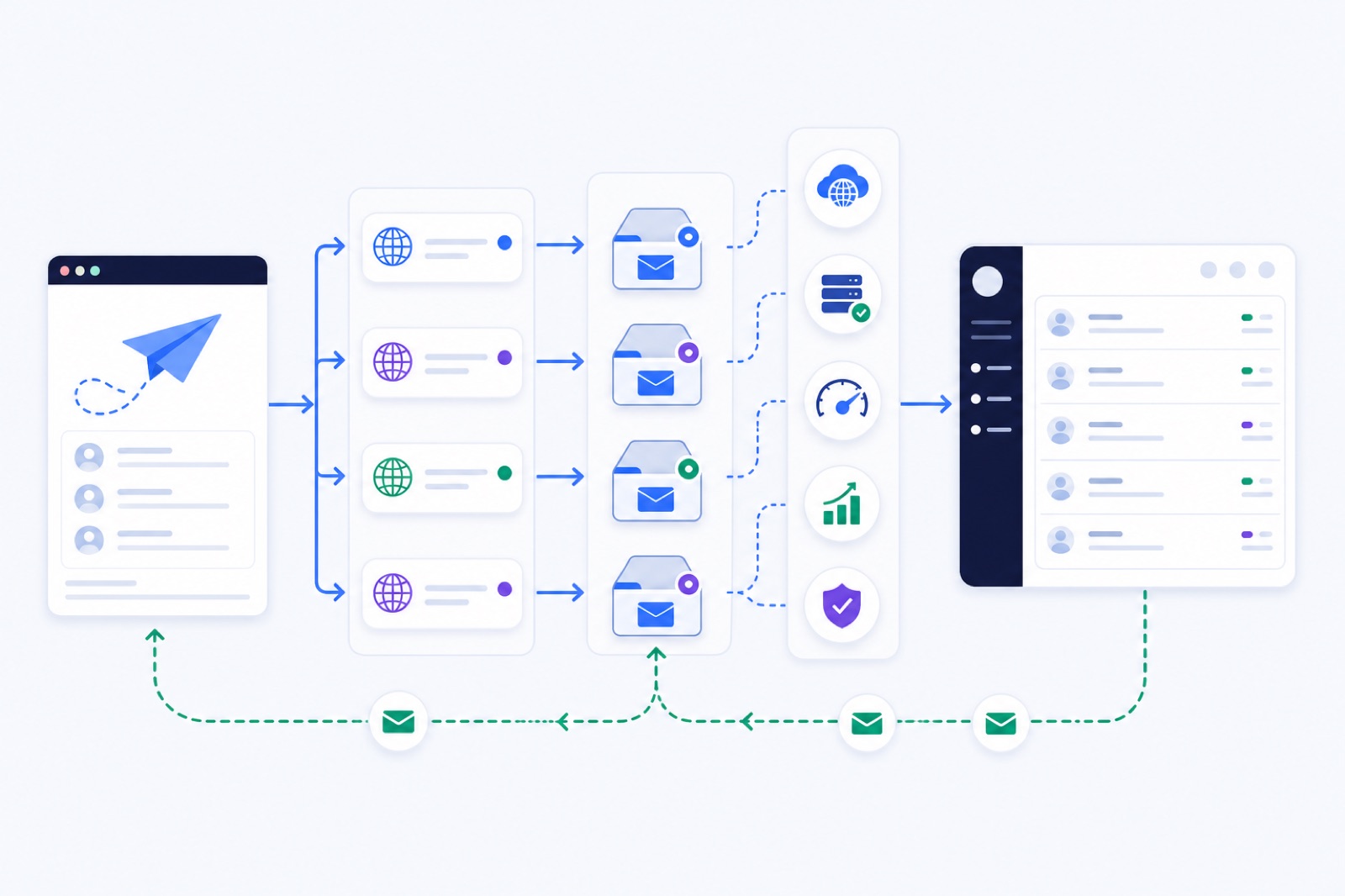
You can run cold email without Google Workspace by using hosted mailboxes on secondary domains you own, with some options around $3 per mailbox per month plus domain cost. If you skip DNS, warm-up and daily caps, cheaper mailboxes will still land in spam. This guide shows the setup, costs, limits and trade-offs before you buy seats.
The usual reason is scale. Cold outreach works better when you spread sending across multiple low-volume mailboxes. Google Workspace and Microsoft 365 are good business email systems, but paying for a full productivity seat for every outreach sender can become expensive.
Start with a secondary cold email domain, not your main company domain. Then add hosted mailboxes, set SPF, DKIM and DMARC, warm them up, and send at conservative daily limits. If you are planning volume, use a mailbox and domain calculator before buying domains.
Why avoid Workspace seats?
Google Workspace and Microsoft 365 are not wrong choices. They are just not the only way to run cold outreach.
The problem appears when you need many sender identities. A typical safe range after warm-up is 30–50 cold emails per mailbox per day. New mailboxes should start lower.
That means 100 cold emails a day usually needs at least three or four sending mailboxes. A 500-per-day setup may need around 17 mailboxes, plus several domains.
If those mailboxes exist only for outreach, full office-suite seats can feel wasteful. You may not need calendars, documents, meetings, storage or chat. You need reliable sending, receiving, authentication records and control over daily volume.
There is also admin overhead. Workspace and Microsoft 365 setups can involve domain verification, DNS, aliases, app passwords or OAuth permissions, user creation, billing and account recovery.
That work is manageable for five mailboxes. It becomes painful at 50.
Hosted sending mailboxes solve a narrower problem. They give you mailboxes on domains you own, usually without buying a full office suite seat for every sender.
Treat them as real mailboxes. They are not inbox-placement devices. They still need warm-up, steady sending, replies, clean lists and compliant opt-out handling.
How do hosted mailboxes work?
A hosted sending mailbox is an email account on a domain you control. The domain is usually a lookalike or secondary domain such as getacme.com, tryacme.com or acme-mail.com, not your primary acme.com domain.
The mailbox looks like a normal sender address:
alex@getacme.commaya@tryacme.comsam@acme-mail.com
Behind the scenes, the mailbox needs two jobs.
First, it must send email. That usually means SMTP credentials, or a sending platform connected to the mailbox.
Second, it must receive replies. That usually means IMAP access, a hosted inbox, or a unified inbox that fetches mail live.
A basic hosted setup has five parts:
- A secondary domain.
- One to five mailboxes on that domain.
- SPF, DKIM and DMARC records.
- Warm-up before outreach.
- A sending tool that respects mailbox caps.
Do not send cold email from your main company domain. Keep the main domain for customers, invoices, support, hiring, logins and normal business conversations.
Cold email carries risk. Even careful senders get bounces, ignores, spam reports and filtering. Put that risk on secondary domains.
If a secondary domain performs badly, you can pause it, repair it or retire it. If your main domain performs badly, your whole company may feel it.
A hosted mailbox can sit on your own mail server, a specialist outbound infrastructure provider, or a platform that creates the domain and mailbox for you. The important point is ownership: the domain should be yours, and the sender identity should be under your control.
BobWork’s done-for-you setup, for example, buys lookalike .com domains, sets up hosted mailboxes on its own mail server, configures DNS, starts warm-up and attaches the mailboxes to a campaign. New mailboxes still warm for 2–3 weeks before full volume. They are not sold as pre-warmed mailboxes.
What does it cost?
The cheapest mailbox is not always the cheapest campaign.
You also need domains, DNS setup, warm-up, inbox management, bounce suppression, unsubscribe handling and sending controls. If you ignore those, low mailbox pricing just gets you to the spam folder faster.
Use this table to compare the mailbox layer. Prices change, so check current pages before buying. Competitor mailbox prices below were read on 9 November 2026 where stated.
| Setup option | Mailbox cost | Domain cost | Example cost | What you still manage |
|---|---|---|---|---|
| Direct Google Workspace or Microsoft 365 seats | Check current provider pricing | Your registrar price | Depends on current seat price and mailbox count | Domain setup, users, DNS, warm-up, sending caps, replies |
| Smartlead or Instantly Google/Microsoft mailboxes | About $4.50–$5/mailbox/month | About $15–$18/domain/year | Depends on mailbox and domain count | Platform rules, warm-up timing, deliverability controls |
| Smartlead or Instantly pre-warmed mailboxes | About $9–$10/mailbox/month | About $15–$18/domain/year | Higher monthly cost per sender | Check provider terms, age, ownership and sending limits |
| Mailforge mailbox slot | $3/mailbox slot/month | Check current domain price | $3/month per slot plus domains | Domain choice, warm-up, sending limits, inbox process |
| BobWork hosted mailboxes | $3/mailbox/month | .com $14.99 first year | 100/day: 4 mailboxes on 2 domains, $41.98 to start, then $12/month | List quality, copy, replies and pacing |
| BobWork hosted mailboxes | $3/mailbox/month | .com $14.99 first year | 500/day: 17 mailboxes on 6 domains, $140.94 to start, then $51/month | Same, plus campaign monitoring |
The cost difference becomes clearer as volume grows.
If you need 100 cold emails a day, a four-mailbox setup is usually enough after warm-up. If you need 500 a day, you need a small sending system, not one overloaded inbox.
Do not compare only monthly mailbox price. Compare the operating model:
- Who owns the domains?
- Can you cancel mailboxes without losing domains?
- Are SPF, DKIM and DMARC configured?
- Can you see replies in one place?
- Are unsubscribes and bounces suppressed forever?
- Are mailboxes warmed before sending?
- What happens when a mailbox gets a high bounce rate?
For broader planning, use a cold email infrastructure cost breakdown before committing to a provider.
How should domains be set?
Your domain plan matters more than your mailbox vendor.
A common pattern is 2–5 mailboxes per sending domain. That range spreads risk and avoids putting too much outbound load on one domain. If you need more volume, add domains.
Do not use disposable-looking domains. Pick names that are close enough to your brand to make sense, but different from your main domain.
Good examples:
- Main domain:
acme.com - Sending domains:
getacme.com,tryacme.com,acmehq.com
Bad examples:
- Random domains unrelated to your company.
- Misspelled phishing-style domains.
- Hyphen-heavy domains.
- Domains that impersonate another company.
Before sending, configure authentication records.
SPF authorises the servers allowed to send for the domain. DKIM signs mail so receivers can verify it was not changed in transit. DMARC tells receivers what to do when SPF or DKIM alignment fails.
Google’s sender guidelines require proper authentication for bulk senders, and Google says spam complaint rates should stay below 0.1% and never reach 0.3%. See the official Google Email sender guidelines.
Yahoo requires SPF and DKIM, DMARC at least p=none, aligned From domains, one-click unsubscribe for bulk mail, and a spam rate under 0.3%. See Yahoo sender best practices.
Microsoft requires SPF, DKIM and DMARC alignment for domains sending more than 5,000 emails per day to Outlook.com and Hotmail consumer mailboxes. Microsoft has not stated a numeric complaint threshold in that rule. See Microsoft’s high-volume sender requirements.
For one-click unsubscribe, the technical standard is RFC 8058. Your sending tool should handle this with a List-Unsubscribe header and a visible unsubscribe link where needed.
If you want the setup version, follow a SPF, DKIM and DMARC checklist before connecting any campaign.
How long should warm-up take?
Hosted mailboxes are new identities. Treat them like new senders.
For an existing domain, 7 days of warm-up can be enough before light sending. For a new domain, plan 2–3 weeks before full volume. If the domain is new, the mailbox is new and the list is untested, choose the longer path.
Warm-up is not a guarantee. It helps create normal mailbox behaviour before outreach: sending, receiving, replies, inbox placement and gradual volume.
A useful warm-up system does more than send messages. It should detect spam placement, move its own warm-up mail back to the inbox, reply sometimes, and avoid touching real mail.
BobWork Email Warm-up starts at 3 emails per day, adds 2 per day, and caps at 30 per day by default. The cap is editable per mailbox up to 100. Weekends run at 30%, sends are spread between 09:00 and 18:00 in the mailbox’s time zone, and about 40% of warm-up mail gets a reply.
The free pool does this step automatically through a shared warm-up network, or you can switch to a private pool per account if you prefer. Private pools need at least two mailboxes. The shared network can start with one mailbox.
During active campaigns, keep warm-up running at about 10–15 emails per day per mailbox. This keeps mailbox behaviour alive while real outreach runs.
Use this gate before sending cold email:
| Signal | Minimum or limit | How to act |
|---|---|---|
| Existing-domain warm-up | 7+ days | Start light only after the mailbox has stable activity |
| New-domain warm-up | 2–3 weeks | Wait longer before full campaign volume |
| Warm-up received | 30+ emails in 7 days | Confirms the mailbox is receiving and participating |
| Warm-up spam rate | 7-day rate ≤10% | Do not start outreach if warm-up mail is landing in spam |
| Real cold email cap | 30–50/day per mailbox | Add mailboxes instead of overloading one sender |
| Campaign warm-up | 10–15/day per mailbox | Keep warm-up running while outreach sends |
| BobWork pause rule | Above 5% spam rate | Pause the mailbox for a few days and inspect DNS, copy and list source |
| Google complaint rate | Under 0.1%, never 0.3% | Reduce volume if complaints approach the published threshold |
| Yahoo spam rate | Under 0.3% | Review consent, targeting and unsubscribe handling |
If a mailbox starts landing in spam, do not raise volume to “push through it”. Pause cold sending for a few days, keep warm-up low, check DNS, review recent copy, and inspect the list source.
Use a new-domain warm-up plan if the domain has no sending history.
What sending limits are safe?
Cold email deliverability fails when volume rises faster than trust.
A safe pattern is:
- 2–5 mailboxes per sending domain.
- 30–50 cold emails per mailbox per day after warm-up.
- 4–9 minutes between sends from one mailbox.
- Working hours only.
- Warm-up continues while campaigns run.
- Replies stop the sequence for that contact.
- Bounces and unsubscribes are suppressed forever.
Do not run all sends at the top of the hour. Do not send the same template to every lead. Do not use one domain for all outreach. Do not push a mailbox harder because yesterday looked fine.
Daily limits should depend on the weakest signal, not the most optimistic one.
If bounces rise, stop and clean the list. If replies are poor, fix targeting and offer. If spam placement rises, pause the mailbox. If complaints appear in Google Postmaster Tools, reduce volume and review consent, relevance and unsubscribe handling.
The biggest mistake is treating mailbox count as permission to spam.
More mailboxes only help if each mailbox sends better. A 20-mailbox setup with bad lists and misleading copy will still burn domains. A four-mailbox setup with careful targeting may outperform it.
Cold email is not a deliverability hack. It is a trust, relevance and operations problem.
What are the trade-offs?
Hosted sending mailboxes are useful, but they are not always the right choice.
Use them when you need low-cost sender capacity, you are comfortable using secondary domains, and you can wait 2–3 weeks for new domains to warm before full sending.
Avoid them if your company requires all outbound email to sit inside Google Workspace or Microsoft 365 for compliance, archiving or security policy reasons.
Also avoid them if your team cannot manage replies and opt-outs. A mailbox is not just a sending pipe. It is a real identity. People will reply, unsubscribe, ask questions, object, forward your email and report spam.
Know these trade-offs before you buy:
- Hosted mailboxes are not Google or Microsoft mailboxes. You cannot assume identical placement.
- Deliverability still depends on DNS, domain history, mailbox behaviour, sending caps, list quality and replies.
- New mailboxes need time. Do not buy a domain in the morning and launch at 500 a day in the afternoon.
- Reply handling matters. A unified inbox helps when you run many mailboxes.
- Suppression must be account-wide. Unsubscribes and bounces should stop future sends across campaigns.
- Lookalike domains should support your brand, not deceive the recipient.
If you already pay for a cold email platform with bundled warm-up and mailbox management, you may not need a separate setup. If you only need warm-up or cheaper sender capacity, a standalone hosted mailbox stack can be simpler.
For campaign structure after warm-up, use a four-step cold email sequence and stop rules that remove people after replies, bounces and unsubscribes.
What should you verify first?
Do the infrastructure work before writing the campaign.
| Step | Action | How to verify |
|---|---|---|
| 1 | Choose secondary domains, not your main domain | Your main domain is absent from the sending plan |
| 2 | Use 2–5 mailboxes per domain | Mailbox count per domain stays inside the planned range |
| 3 | Set SPF for the sending service | SPF passes in a DNS checker and test email headers |
| 4 | Enable DKIM signing | DKIM passes in message headers from a test send |
| 5 | Publish DMARC at least p=none | DMARC record exists and aligns with SPF or DKIM |
| 6 | Warm new mailboxes before outreach | Each mailbox has 7+ days warming, or 2–3 weeks for new domains |
| 7 | Keep cold email caps low | Each sender stays around 30–50 cold emails/day after warm-up |
| 8 | Add unsubscribe handling | Test email includes an unsubscribe link and, where needed, List-Unsubscribe |
| 9 | Suppress bounces and opt-outs | A bounced or unsubscribed contact cannot be sent again |
| 10 | Monitor spam and complaints | Pause mailboxes above 5% spam rate and review provider dashboards |
Do not skip the verification column. A DNS record you meant to add is not the same as a DNS record that passes.
Send test emails to accounts you control. Open the original message headers. Check SPF, DKIM and DMARC results. Then check the visible sender, reply-to address, unsubscribe link and signature.
If you use BobWork, the hosted setup can buy domains, create hosted mailboxes, set SPF, DKIM and DMARC, start warm-up, and attach ready mailboxes to Outbound. BobWork Email Warm-up is free for up to 3 mailboxes on new accounts, with no card and no time limit; extra mailboxes are priced by volume.
Save money on seats, not on discipline. Use secondary domains, warm up patiently, keep daily volume low, and let each mailbox earn trust before asking it to carry a campaign.
Frequently asked questions
Can I send cold email without Google Workspace?
Yes. You can send from hosted mailboxes on your own sending domains if they support SMTP and receiving over IMAP, or a platform manages both for you. You still need SPF, DKIM, DMARC, warm-up, low daily volume and clean lists.
Are hosted sending mailboxes pre-warmed?
They should not be treated as pre-warmed. A new mailbox on a new sending domain typically needs 2–3 weeks of warm-up before full cold email volume. Any claim that you can safely send full volume today should be checked carefully.
Should I use my main company domain?
No. Use secondary or lookalike domains for cold outreach. Keep your main domain for normal business email, support, invoices, logins and existing customers. Cold email risk should not sit on your primary domain.
How many mailboxes should I put on one domain?
A typical cold email setup uses 2–5 mailboxes per sending domain. If you need more daily volume, add more domains and mailboxes instead of forcing one mailbox or one domain to send too much.
What daily cold email limit is safe?
A typical range is 30–50 cold emails per mailbox per day after warm-up. New mailboxes should start lower. Watch bounces, replies, complaints and spam placement, then add more mailboxes instead of raising volume aggressively.
Is a hosted mailbox as good as Google Workspace?
It can work, but it is not the same infrastructure. Deliverability depends on DNS, domain history, mailbox behaviour, sending caps, list quality and replies. Google and Microsoft mailboxes may be easier for some teams, but they cost more per sender.
Do I still need unsubscribe links?
Yes. Cold outreach should include a working unsubscribe mechanism, and bulk senders should support one-click unsubscribe where required. Yahoo requires one-click unsubscribe for bulk senders, and Microsoft recommends a working unsubscribe process. Honour opt-outs quickly.
Warm up your mailboxes free
Connect Gmail, Google Workspace, Zoho or Lark. Your mailboxes warm on a shared network, or in a private pool of your own, starting today.