 Email Warm-up
How to Warm Up IONOS Email Safely
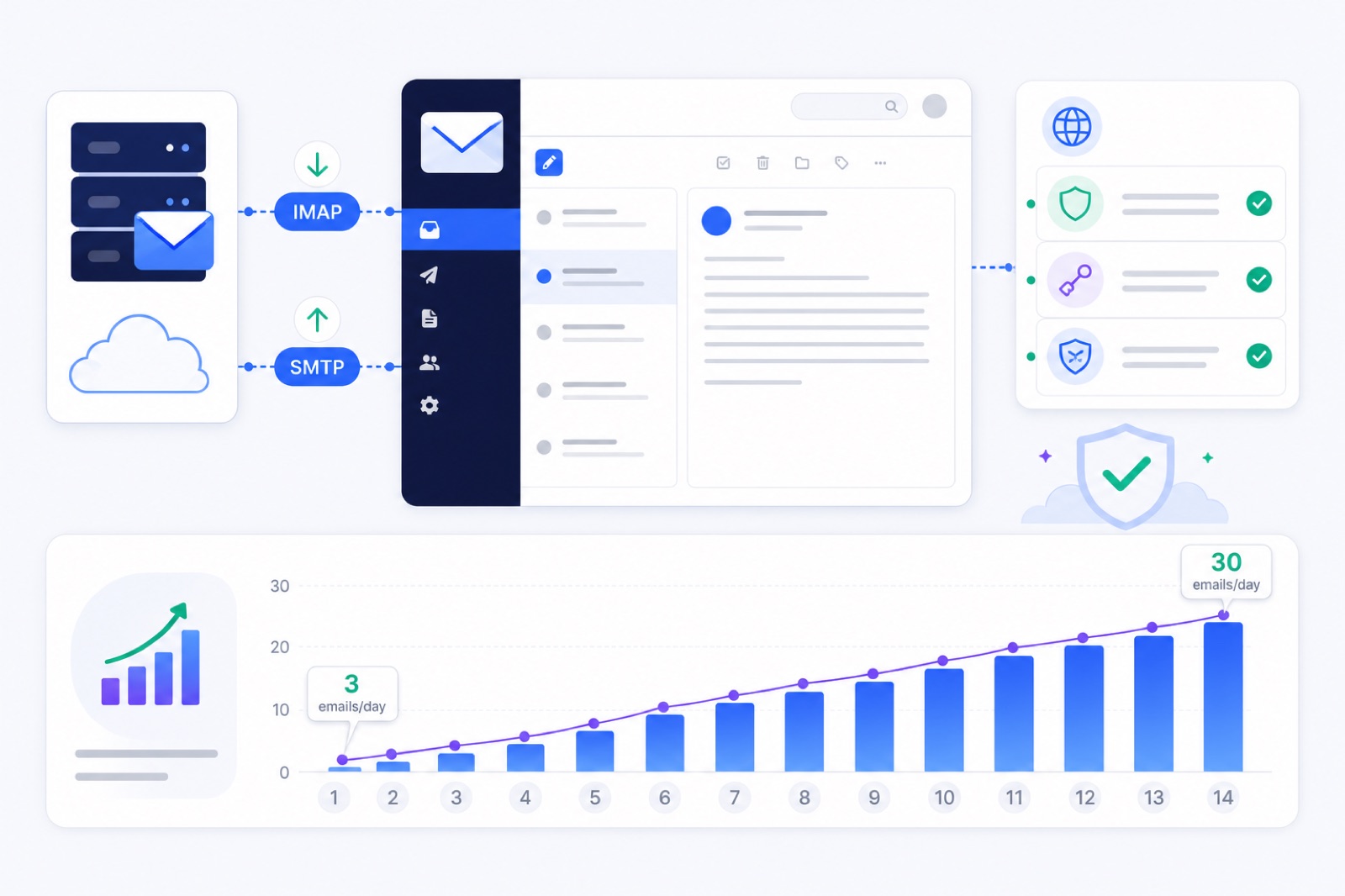
To warm up IONOS email, connect the mailbox by IMAP and SMTP, verify SPF, DKIM, and DMARC, then ramp from 3 warm-up emails a day toward 30 over about two weeks. If you send cold outreach before those signals settle, Gmail and Yahoo can filter you. This guide gives the connection path, DNS checks, ramp, and ready criteria.
What should you fix first?
Treat IONOS like any hosted mailbox provider. You need two working layers before warm-up helps: the mailbox must send through SMTP, and receiving providers must trust the domain enough to accept the mail.
Start with the mailbox. IONOS must accept the username, password, server, port, and encryption settings. If SMTP login fails, warm-up cannot start.
Then check the domain. Gmail, Yahoo, Outlook.com, business gateways, and private filters judge your authentication, sender history, engagement, complaints, bounces, and content. A successful IONOS login does not mean Gmail will inbox you.
If you want the schedule without building it by hand, use the free email warm-up schedule generator. Still check DNS before you start.
Warm-up does not fix a bad list, misleading copy, or a broken offer. It builds normal mailbox activity: sent messages, opened replies, archived mail, and fewer spam-folder signals.
For IONOS, the most common failure is not the ramp. It is a connection or DNS issue. Fix those first, then test a small real sending volume.
| Signal | What to check | Safe target |
|---|---|---|
| SMTP login | Full email address, password, server, port, encryption | Login succeeds consistently |
| SPF | IONOS sending servers are authorised in DNS | One SPF record only |
| DKIM | IONOS DKIM is enabled and signing | Test mail shows dkim=pass |
| DMARC | DMARC exists and aligns with SPF or DKIM | Start at p=none |
| Spam complaints | Recipients marking mail as spam | Google says under 0.1%, never above 0.3% |
| Bounces | Invalid addresses and blocked mail | Keep low with verified lists |
| Daily volume | Warm-up and real outbound per mailbox | Ramp slowly; avoid spikes |
| Content | First sends and templates | Plain, relevant, low-link copy |
Google publishes these complaint and authentication rules in the Google Email Sender Guidelines. Yahoo publishes similar requirements in its sender best practices. Even below bulk volume, use them as guardrails.
How do you connect IONOS?
IONOS connects through the generic IMAP and SMTP route. In BobWork Email Warm-up, open Add mailbox, then choose Other IMAP + SMTP.
Use the current mail-client settings from IONOS. IONOS publishes its email program settings on its IMAP and SMTP help page. Check that page before connecting because ports and encryption can vary by product or region.
| Field | Use this for IONOS | How to verify |
|---|---|---|
| Preset | Other IMAP + SMTP | Manual host fields appear |
| Username | Full IONOS email address | Example: name@yourdomain.com |
| Password | Mailbox password | IONOS Webmail login works |
| IMAP host | imap.ionos.com | Confirm in current IONOS help |
| IMAP port | 993 | SSL/TLS enabled |
| SMTP host | smtp.ionos.com | Confirm in current IONOS help |
| SMTP port | The current IONOS-listed SMTP port | Match IONOS encryption setting |
| From name | Real sender name | Matches the mailbox identity |
| Time zone | Sender’s working time zone | Warm-up sends in local hours |
If the SMTP test fails, do not edit DNS first. SMTP failure usually means a wrong password, wrong port, wrong encryption, account lock, or mailbox provisioning delay.
Log in to IONOS Webmail directly. If Webmail fails, fix the mailbox inside IONOS. If Webmail works, re-check the SMTP host, port, encryption, and username.
BobWork sends through your IONOS SMTP credentials and reads warm-up replies through IMAP. The shared warm-up network handles the send, reply, spam-rescue, label, and archive cycle automatically. You can switch to a private pool per account if you prefer; private mode needs at least two mailboxes.
One mailbox is enough to start in the shared network. Two or more mailboxes on different domains or providers can create a broader pattern.
Which DNS records matter?
Check SPF, DKIM, and DMARC before warm-up. DNS is not a place to guess.
Use the free SPF checker, free DKIM checker, and free DMARC checker after every change. DNS can take time to propagate, so test again later if a new record does not appear.
Add one SPF record
SPF tells receivers which servers can send mail for your domain. You must have only one SPF TXT record at the root domain.
IONOS documents SPF includes such as include:_spf.perfora.net and include:_spf.kundenserver.de for IONOS mail. Some regions or products may show a different current value. Copy the value from your IONOS control panel or the current IONOS SPF documentation.
A typical IONOS-only SPF record may look like this:
| Host | Type | Value |
|---|---|---|
| @ | TXT | v=spf1 include:_spf.perfora.net include:_spf.kundenserver.de ~all |
Do not paste that blindly if IONOS shows a different value for your domain. Also do not create a second SPF record. Merge every authorised sender into one SPF record.
If you also send through SendGrid, Mailgun, Amazon SES, or a newsletter platform, add that sender to the same SPF record. Watch the SPF 10-lookup limit. If you hit it, use the SPF 10-lookup guide before adding more includes.
Enable DKIM
DKIM signs mail so receivers can verify that the message was authorised by your domain. Enable DKIM in the IONOS control panel when available.
IONOS may create DKIM automatically if your domain uses IONOS nameservers. If DNS is hosted elsewhere, IONOS can show the record you need to add. Follow the current IONOS DKIM instructions.
The DKIM selector is the label before ._domainkey. If IONOS shows k1._domainkey.yourdomain.com, the selector is k1. If it shows another selector, use that exact selector.
After saving the record, send a fresh test email to a mailbox you control. Open the headers and look for dkim=pass. Then check the selector with a DKIM checker.
Add DMARC at monitoring
DMARC tells receivers what to do when SPF and DKIM do not align. Start with monitoring. Do not begin a new cold-email domain at p=reject unless every legitimate sender is already verified.
A starter DMARC record is:
| Host | Type | Value |
|---|---|---|
_dmarc | TXT | v=DMARC1; p=none; rua=mailto:dmarc@yourdomain.com; fo=1 |
Use an address you control for rua. If you do not want aggregate reports, you can omit rua, but keep a valid DMARC record.
When SPF and DKIM pass consistently, you can move from p=none to a stricter policy. Do that only after checking all legitimate senders.
For a broader walkthrough, use the SPF, DKIM and DMARC guide.
What ramp should you use?
Use a boring ramp. You want predictable mailbox activity, not a sudden spike from a new address.
BobWork’s default engine starts at 3 emails per day, adds 2 per day, and caps at 30 per day. Weekends run at 30% volume. Sends are spread from 09:00 to 18:00 in the mailbox’s own time zone, with randomness.
Use this 14-day plan for an existing clean domain. For a new domain, repeat the second week or warm for 2–3 weeks before cold outreach.
| Day | Warm-up emails/day | Real cold emails/day | What to check |
|---|---|---|---|
| 1 | 3 | 0 | IMAP and SMTP stay connected |
| 2 | 5 | 0 | SPF, DKIM, DMARC pass |
| 3 | 7 | 0 | No spam-folder pattern |
| 4 | 9 | 0 | No SMTP blocks |
| 5 | 11 | 0 | Replies and reads look normal |
| 6 | 13 | 0 | Weekend volume drops if applicable |
| 7 | 15 | 0 | 7-day spam rate is acceptable |
| 8 | 17 | 5–10 | Test only with a clean list |
| 9 | 19 | 10–15 | Watch bounces and replies |
| 10 | 21 | 15–20 | Keep copy plain and relevant |
| 11 | 23 | 20–25 | Avoid adding links too early |
| 12 | 25 | 25–30 | Pause if spam placement rises |
| 13 | 27 | 30 max | Check domain-level signals |
| 14 | 29–30 | 30 max | Decide whether to continue scaling |
Do not treat day 14 as permission to blast. A typical safe cold-email range is 30–50 real emails per mailbox per day. Add mailboxes rather than forcing one IONOS inbox to carry the whole campaign.
During campaigns, keep warm-up running at 10–15 messages per day. If spam placement rises above 5% for a mailbox, pause that mailbox for a few days and reduce outbound.
For a new domain, use the new-domain warm-up guide. For volume planning, use the mailbox calculator guide.
How do you fix blocks?
Most IONOS warm-up failures fit a short list. Fix them in order. Do not change five things at once.
SMTP login fails
Check Webmail first. If Webmail fails, the mailbox password or account state is the problem.
If Webmail works, check the SMTP host, port, and encryption against the current IONOS help page. Make sure the username is the full email address, not only the part before @.
If the mailbox was just created, wait and try again. Some hosted mailboxes need time before every mail-client route works.
Mail goes to spam
Check DNS before rewriting the message. SPF, DKIM, and DMARC must pass.
Then check the message pattern. New mailboxes should not send long HTML, many links, attachments, tracking-heavy templates, or repeated copy. Start with plain text.
If cold emails are already going to spam, use the cold email spam fix guide and check whether the domain itself is the issue.
DKIM does not pass
Find the selector IONOS gave you. Do not guess it. If DNS is not hosted at IONOS, copy the host and value into your external DNS provider exactly.
Wait for DNS propagation, then test again. If the record exists but DKIM still fails, send a fresh email. Old messages will not be re-signed after you fix DNS.
SPF has two records
SPF must be one TXT record beginning with v=spf1. Duplicate SPF records are common after connecting several tools.
Merge all authorised senders into one record. Remove duplicate SPF records. Then test again.
If the merged record is too long or has too many lookups, simplify it. Do not keep adding includes indefinitely.
Volume rises too fast
Warm-up cannot hide aggressive sending. If a mailbox jumps from zero to hundreds of messages, receiving providers can still filter it.
Keep the warm-up ramp separate from campaign ambition. Add mailboxes instead of pushing one IONOS inbox too hard. For cold outreach infrastructure, the practical range is often 2–5 mailboxes per domain.
Replies are ignored
A mailbox that sends but never reads or answers looks unnatural. Monitor replies daily.
If you use BobWork’s optional Inbox, warm-up emails are hidden and real replies can be handled across connected mailboxes. If you use another inbox, still check every mailbox. Reply activity matters.
What should you do now?
Use this checklist before you start. It is faster than repairing a damaged sender later.
| Step | Action | How to verify |
|---|---|---|
| 1 | Log in to IONOS Webmail | The mailbox opens and can send a test email |
| 2 | Collect IMAP and SMTP settings | They match the current IONOS help page |
| 3 | Connect with Other IMAP + SMTP | The warm-up app shows a successful login test |
| 4 | Add or confirm SPF | SPF checker shows one valid SPF record |
| 5 | Enable DKIM | DKIM checker finds the IONOS selector and test mail passes |
| 6 | Add DMARC at p=none | DMARC checker shows a valid record |
| 7 | Start at 3 warm-up emails/day | The first day sends without SMTP errors |
| 8 | Watch spam placement | 7-day spam rate stays low before outreach |
| 9 | Start real outreach slowly | First campaign sends 5–10 emails/day |
| 10 | Keep warm-up running | Warm-up continues at 10–15/day during campaigns |
If you warm more than one mailbox, use consistent names, real signatures, and sender photos where appropriate. Avoid identical templates across every account.
For a manual-versus-automated view, read manual email warm-up vs automation. Manual warm-up can work for one mailbox, but it is hard to maintain across several accounts.
When is IONOS ready?
A mailbox is not ready just because two weeks have passed. Use behaviour-based checks.
For BobWork, the ready gate is at least 7 days warming, a 7-day spam rate at or below 10%, and at least 30 warm-up emails received. Healthy mailboxes show a health score of 85 or higher. Watch is 60–84. At risk is below 60.
That gate is not permission to scale hard. Start real outbound at 5–10 emails per day, then move toward 30–50 per day only if replies, bounces, and spam placement stay healthy.
Use short, relevant first emails. Stop sequences when someone replies. Honour unsubscribes. Keep bounces low by verifying addresses before sending.
If you need a sequence structure, use the 4-step cold email sequence template. If you need to warm and send from the same mailbox, read how to warm up while sending cold emails.
You can connect an IONOS mailbox to BobWork Email Warm-up with the Other IMAP + SMTP route. It is free for up to 3 mailboxes on new accounts, with no card and no time limit. The tool handles the schedule, replies, spam rescue, DNS checks, and ready gate while you keep control of the mailbox.
Frequently asked questions
Can I warm up an IONOS email account?
Yes. IONOS mailboxes can be warmed through IMAP and SMTP if third-party mail-client access works for the mailbox. Use the IONOS IMAP server for receiving and the IONOS SMTP server for sending, then ramp slowly.
What IMAP and SMTP settings should I use for IONOS?
Use the current settings from IONOS help for your account. Typically, IMAP uses imap.ionos.com on port 993 with SSL/TLS. SMTP uses smtp.ionos.com on the port IONOS lists, commonly 587 with STARTTLS or 465 with SSL/TLS.
Does IONOS need an app password?
Usually you connect with the full email address and mailbox password. If your IONOS account has extra security settings or the login fails, check the current IONOS mail-client instructions and reset the mailbox password if needed.
What SPF record does IONOS use?
IONOS has used SPF includes such as include:_spf.perfora.net and include:_spf.kundenserver.de in its documentation, but the correct value can vary by region and product. Copy the current SPF value from IONOS help or your control panel, then verify it.
How long should I warm up IONOS email?
Use at least 7 days for an existing clean domain. Use 2–3 weeks for a new domain or mailbox. If spam placement rises, pause outreach and keep warm-up running at a lower volume.
Can I send cold email during warm-up?
Avoid cold email during the first week. After the mailbox is stable, start with small volume. A typical safe range is 30–50 real cold emails per mailbox per day, depending on replies, bounces, complaints, and provider limits.
Does warm-up guarantee inbox placement?
No. Warm-up helps build normal sending behaviour, but inbox placement also depends on DNS, domain history, list quality, complaints, bounces, content, and recipient engagement. No warm-up tool can guarantee inbox placement.
Warm this mailbox up for free
Connect it in a minute. It warms on the shared network or in your own private pool, ramps 3 to 30 a day, and the dashboard tells you when you are ready.