 Email Warm-up
Inbox Rotation for Cold Email: Caps, Mailboxes, Domains
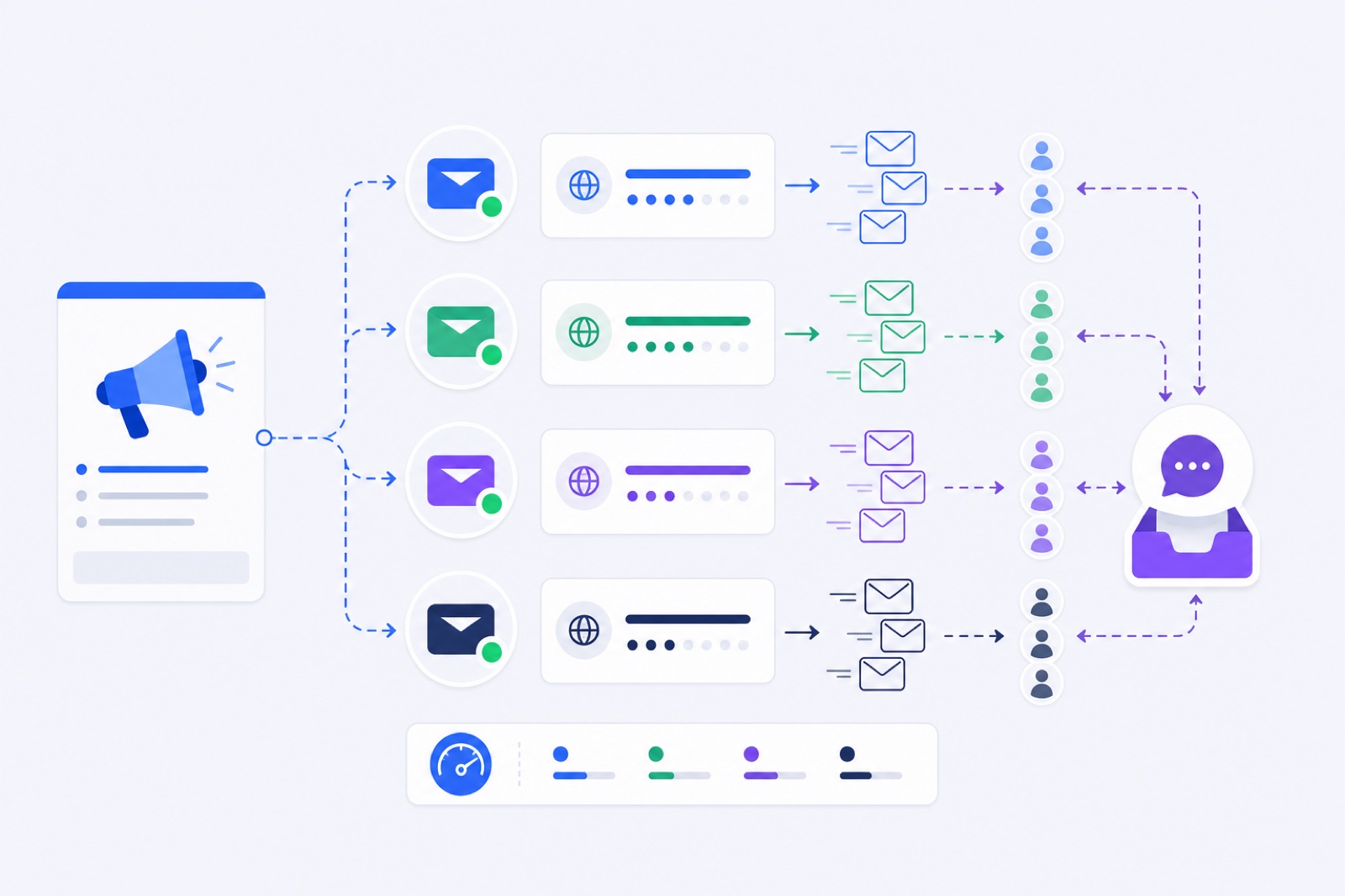
For inbox rotation cold email, use 30 cold emails per mailbox per day as the first cap, then consider 50 only after warm-up and clean real sending. If you force one inbox to carry the full campaign, spam placement, bounces, throttling, and complaints concentrate on one sender. This guide gives the caps, mailbox counts, domain spread, warm-up gate, reply rules, and costs.
Inbox rotation is simple in theory: one campaign sends through several mailboxes. Each sender handles a small slice of the daily volume.
The hard part is keeping those senders authenticated, warmed, paced, and easy to manage. If you are still planning volume, start with the mailbox count. This mailbox calculator guide uses the same rule: add senders before you add pressure.
What does inbox rotation do?
Inbox rotation spreads campaign emails across multiple sender mailboxes. Instead of sending 300 cold emails from alex@example.com, you might send 50 each from six mailboxes.
That changes how problems show up. A lockout, bounce spike, or spam-placement issue can appear on one sender before it consumes the whole campaign. If the problem is domain-wide, pause that domain instead of pretending rotation solved it.
Rotation also keeps each mailbox closer to normal sender behavior. A real person rarely sends hundreds of near-identical first-touch emails every day from one inbox.
Rotation does not fix weak infrastructure. It will not save broken SPF, missing DKIM, no DMARC, poor lists, misleading copy, or missing unsubscribe handling. It only distributes sending load.
Use rotation when your daily target exceeds a safe per-mailbox cap. Use fewer mailboxes while you are still testing the offer, list, copy, and reply quality.
A good rotation setup has four parts:
- Mailboxes that passed a warm-up gate.
- Daily caps per mailbox.
- Send spacing inside working hours.
- Account-level reply, bounce, and unsubscribe rules.
The last part matters. If a person replies, every future step to that person must stop. If they unsubscribe, they must be suppressed across every sender.
How should inbox rotation cold email be capped?
Set the cap before you turn on automation. A cap is the maximum number of cold emails one mailbox can send in a day.
Use 30 cold emails per mailbox per day for new campaign senders. After warm-up and at least a week of stable real sending, 50 per day can work for many mailboxes. Treat 50 as an earned cap, not the default.
Keep warm-up running during campaigns, but below the cold-email cap. A practical range is 10–15 warm-up emails per mailbox per day during active campaigns.
BobWork Outbound follows this model. A mailbox must pass the ready gate before it can send: 7+ days warming, a 7-day warm-up spam rate of 10% or lower, and at least 30 warm-up emails received. Then it sends up to 30 cold emails per day in its first week after ready, and 50 per day after that. Sends happen in working hours, with 4–9 minutes between sends from one mailbox.
The free warm-up network can do the warm-up activity automatically. You still control the list, targeting, copy, and daily send volume.
| Daily cold email target | Mailboxes at 30/day | Mailboxes at 50/day | Typical domain spread | Use this stage |
|---|---|---|---|---|
| 50/day | 2 | 1 | 1 domain is enough | Early copy test |
| 100/day | 4 | 2 | 1–2 domains | Small campaign |
| 250/day | 9 | 5 | 2–5 domains | Proven offer |
| 500/day | 17 | 10 | 4–10 domains | Scaled campaign |
| 1,000/day | 34 | 20 | 7–17 domains | Agency or large team |
The domain spread uses a typical 2–5 mailboxes per domain. That avoids putting every sender on one domain. For a deeper domain plan, use the 2–5 mailboxes per domain guide.
Do not start in the 50/day column. Use it only after the sender has warmed, passed DNS checks, sent real email, and stayed clean.
How many mailboxes do you need?
Start with the business number. Decide how many first-touch emails you want to send each working day.
Then divide by the per-mailbox cap.
If you want 250 cold emails per day and your cap is 30, you need nine mailboxes. That gives 270 possible daily sends, so you have a little headroom instead of maxing every sender.
If you later raise the cap to 50, the same 250 emails need five mailboxes. Keep the other senders warm as spare capacity, or use them for another segment.
Do not forget the workload after sending. Higher volume creates more replies, bounces, unsubscribes, out-of-office messages, and manual review. If you cannot process replies daily, more sending usually creates more waste.
Use this planning rule:
- Test with enough volume to learn.
- Scale only after useful replies appear.
- Add mailboxes before raising caps.
- Add domains before crowding one domain.
- Keep segments small enough to diagnose.
For example, a 500/day campaign at 30 per mailbox needs 17 mailboxes. You could spread them across six domains: three mailboxes on five domains and two on one domain. That is easier to isolate than 17 mailboxes on one domain.
If one domain starts seeing more spam landings, pause that domain’s senders. The rest of the campaign can continue at lower volume while you investigate.
Sending cost is separate from mailbox hosting, domains, list tools, verification, and copy work. BobWork Outbound is pay as you go at $2 per 1,000 emails sent, with no monthly fee for the sending feature. Every account gets $1 of free credit once, which equals 500 emails.
| Cold emails sent | Outbound sending cost | Note |
|---|---|---|
| 10,000 | $20 | Before the one-time $1 free credit |
| 50,000 | $100 | Sending fee only |
| 100,000 | $200 | Sending fee only |
Warm-up itself stays free for up to 3 mailboxes on new accounts. Extra warm-up mailboxes are priced by volume. If you already use a full outreach platform, you may not need another sender. If you need warmed mailboxes and low-cost sending from them, compare the setup with pay-as-you-go cold email software.
How should you warm senders?
Rotation should start after warm-up, not instead of warm-up.
For an existing domain with normal history, warm for at least 7 days before cold outreach. For a new domain, use 2–3 weeks. New domains have no sending reputation, so the first sending pattern matters more.
Days 1–7
Connect the mailbox, check SPF, DKIM, and DMARC, and let warm-up run. Do not send cold outreach yet if the domain is new. For existing healthy domains, wait until the sender has at least 7 days of warm-up data.
Days 8–14
Start a small cold email test only if the mailbox is stable. Keep real outreach at 10–20 per day per mailbox. Keep warm-up at 10–15 per day during the campaign.
Days 15–21
Move toward 30 cold emails per day per mailbox if replies, bounces, spam landings, and complaints stay controlled. Do not raise every sender on the same day. Increase in small groups.
After day 21
Consider 50 per day per mailbox only for senders with clean data. Keep weak mailboxes capped lower. Rotation does not require every sender to use the same cap.
BobWork’s warm-up engine starts at 3 emails per day, adds 2 per day, and caps at 30 per day by default. The cap is editable per mailbox up to 100. Weekends run at 30%. Sends are spread across 09:00–18:00 in the mailbox’s own time zone. You can see the exact behavior in the warm-up strategy.
A mailbox should not send a campaign just because it exists. It should send because it passed the gate.
Readiness should include:
- SPF, DKIM, and DMARC passing.
- At least 7 days of warm-up.
- Enough received warm-up mail to measure placement.
- Low recent spam landings.
- No login or permission failures.
For a full ramp calendar, use this email warm-up schedule.
How do replies stay controlled?
Inbox rotation creates one operational problem: replies land in many mailboxes.
If you do not centralize replies, you miss buying signals. You also risk sending step two after someone already replied to step one.
A safe rotation setup needs account-level stop rules:
- A reply stops the sequence for that contact.
- An unsubscribe suppresses the contact forever.
- A bounce suppresses that address.
- A manual spam complaint removes the contact and triggers a list-source review.
- An out-of-office reply should not always stop the sequence unless it contains a real response.
Keep the first sequence short. Four steps is enough for many cold email tests. More steps can work, but only when targeting and copy are already good. If reply quality is weak, adding steps usually increases complaints.
This 4-step cold email sequence template gives a practical structure with delays and stop rules.
You also need one reply view. A unified inbox helps when one campaign uses 10, 20, or 50 senders. The operator should not log into every mailbox each morning.
BobWork Inbox is optional inside the same app. It shows one inbox for connected mailboxes, hides warm-up emails, and fetches mail live without storing it. You can read, reply, archive, and move to spam. One-click Gmail sign-in needs a separate opt-in, and Outlook is not supported yet.
If you run many senders, read the unified inbox guide before volume grows. Reply handling becomes harder after the campaign is already live.
What signals should you watch?
Inbox rotation works only while sender quality stays clean.
Check DNS first. SPF authorizes the sending service. DKIM signs the mail. DMARC tells receivers how to evaluate alignment and policy. At minimum, use DMARC with p=none while monitoring.
Google’s sender guidance says bulk senders should keep spam complaint rates under 0.10% and avoid reaching 0.30%. Yahoo requires SPF and DKIM, DMARC at least p=none, alignment, one-click unsubscribe for bulk senders, and spam rate under 0.3%. Microsoft requires SPF, DKIM, and DMARC alignment for domains sending over 5,000 emails per day to Outlook.com consumer mailboxes; a numeric complaint threshold is not stated.
Use primary documentation for current rules:
Rotation changes how you respond to bad signals.
If one mailbox has a temporary spam spike, pause that mailbox for a few days. BobWork’s published practice is to pause a mailbox above 5% warm-up spam rate for a few days. Do not keep sending because the average across all mailboxes still looks acceptable.
If one domain has a problem across several mailboxes, pause the domain. Check DNS, content, sending history, and list source.
If every domain has the same problem, rotation is not the issue. Your list, offer, subject line, copy, or compliance setup probably needs work.
Track these numbers daily during ramp:
- Sends per mailbox.
- Replies per mailbox.
- Bounce rate by campaign.
- Unsubscribes by list source.
- Spam landings in warm-up.
- DNS status by domain.
- Provider lockouts or failed logins.
Do not optimize for sent volume alone. A campaign that sends 1,000 per day and creates no useful replies is only spending reputation faster.
For a broader pre-flight list, use the cold email deliverability checklist.
Do this before launch
Use this checklist before your next rotated campaign.
| Step | Action | How to verify |
|---|---|---|
| 1 | Pick the daily target | Write the number of first-touch emails per working day |
| 2 | Set a mailbox cap | Use 30/day for new campaign senders; raise later only with clean data |
| 3 | Calculate mailboxes | Daily target ÷ cap, rounded up |
| 4 | Spread domains | Keep roughly 2–5 mailboxes per domain |
| 5 | Check DNS | SPF, DKIM, and DMARC pass for every domain |
| 6 | Warm first | Existing domain: 7+ days; new domain: 2–3 weeks |
| 7 | Gate senders | Use only mailboxes with low spam landings and no login failures |
| 8 | Keep warm-up running | Set warm-up around 10–15/day during campaigns |
| 9 | Add stop rules | Reply, bounce, and unsubscribe suppress future steps |
| 10 | Review daily | Check replies, bounces, unsubscribes, and warm-up spam rate |
Most rotation failures are basic. Teams skip DNS, rush new domains, set the same cap for every sender, or ignore replies.
Use one campaign segment first. If it performs, duplicate the structure to another segment. Do not launch five untested segments across every mailbox at once.
A good first test could be:
- 4 mailboxes.
- 30 cold emails per mailbox per day.
- 120 daily sends.
- 2 domains.
- 4-step sequence.
- 10–15 warm-up emails per mailbox per day.
- Daily review for one week.
That gives you enough data to see replies and bounces without exposing a large sender fleet.
Start with warmed mailboxes, not maximum volume. BobWork Email Warm-up can warm the senders first, then BobWork Outbound can send only from mailboxes that passed the ready gate. Outbound costs $2 per 1,000 emails sent, with no monthly fee, and warm-up stays free for up to 3 mailboxes on new accounts. It supports Gmail, Google Workspace, Zoho, Lark, Yahoo, iCloud, Amazon SES, SendGrid, Mailgun, and IMAP+SMTP mailboxes. Outlook is not supported yet.
If you want the simplest path, connect a few mailboxes to the free warm-up tool, wait for the ready gate, then start a small rotated campaign instead of forcing one inbox to carry the whole load.
Frequently asked questions
What is inbox rotation in cold email?
Inbox rotation sends one campaign through several mailboxes instead of one sender. Each mailbox sends a smaller share, stays inside its daily cap, and receives replies in its own inbox or a unified inbox.
How many cold emails per mailbox per day is safe?
A typical starting cap is 30 cold emails per mailbox per day. After the mailbox has warmed, sent steadily, and kept complaints and bounces low, 50 per day is a common upper working cap for cold outreach.
Can I rotate inboxes without warming them first?
You can, but it is risky. New mailboxes should usually warm for 2–3 weeks. Existing healthy mailboxes often need at least 7 days. Start real sends only after DNS passes and spam landings are low.
How many mailboxes do I need for 500 emails per day?
At 30 cold emails per mailbox per day, you need 17 mailboxes. At 50 per day, you need 10 mailboxes. Spread them over several domains, typically 2–5 mailboxes per domain.
Should warm-up keep running during campaigns?
Yes, keep warm-up running at a modest level, typically 10–15 warm-up emails per day during campaigns. It helps maintain normal mailbox activity while real cold email volume ramps.
Does inbox rotation replace SPF, DKIM and DMARC?
No. Rotation only spreads volume. You still need SPF, DKIM and DMARC passing and aligned, plus low complaints, working unsubscribe, clean lists and safe sending pace.
Can BobWork rotate Outlook mailboxes?
Not yet. BobWork Email Warm-up does not support Outlook or Microsoft 365 because Microsoft requires OAuth. It supports Gmail, Google Workspace, Zoho, Lark, Yahoo, iCloud, SES, SendGrid, Mailgun and IMAP+SMTP mailboxes.
Warm up your mailboxes free
Connect Gmail, Google Workspace, Zoho or Lark. Your mailboxes warm on a shared network, or in a private pool of your own, starting today.