 Email Warm-up
Gmail Emails Going to Spam? Fix Authentication, Volume, and Complaints
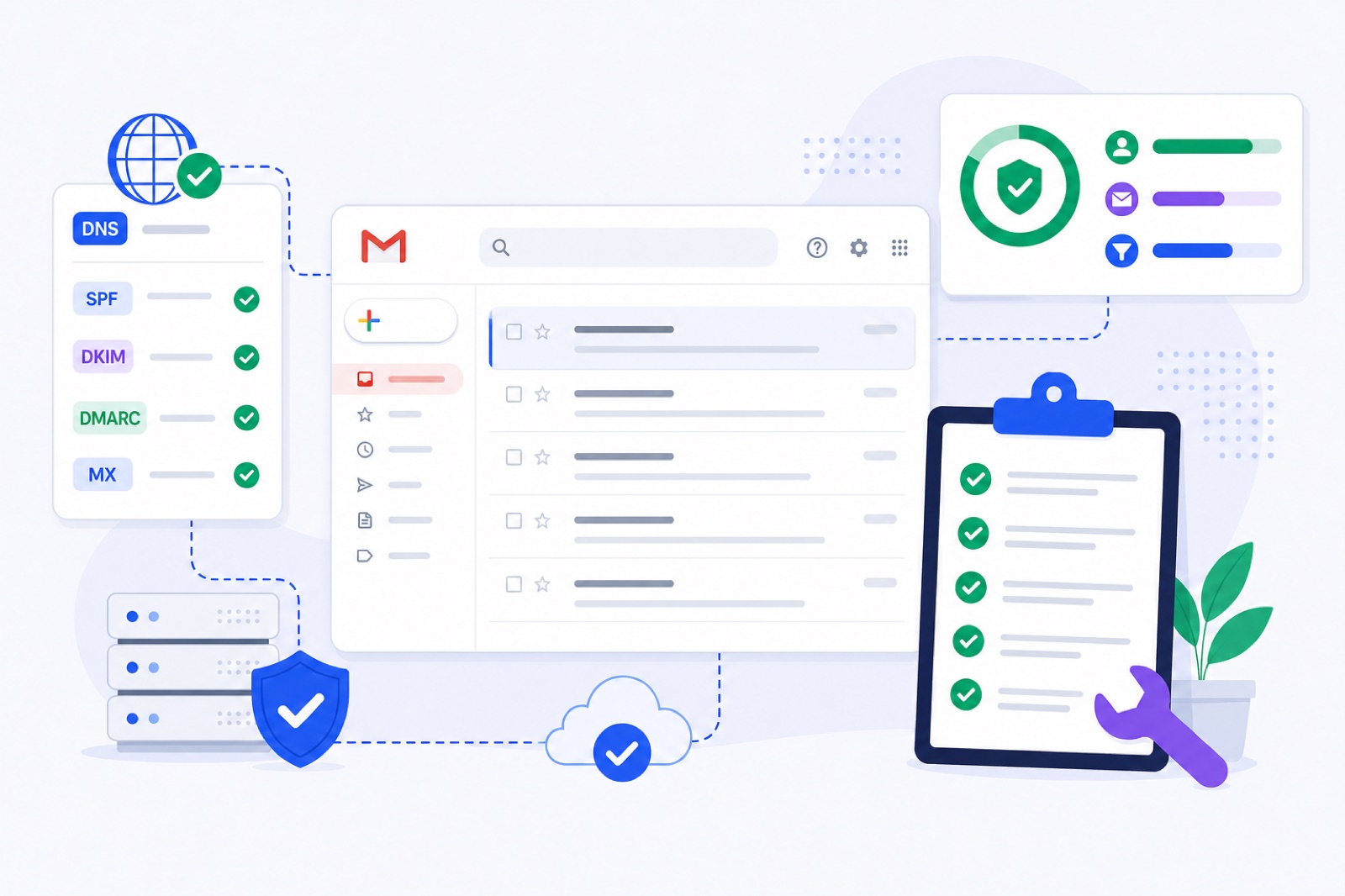
If Gmail emails are going to spam, fix SPF, DKIM, and DMARC first, then keep Gmail spam complaints below 0.1% while you rebuild volume slowly. If you keep sending with broken authentication, risky links, stale lists, or sudden volume jumps, Gmail gets more negative evidence. This guide gives you the checks, records, limits, and recovery order.
Start with proof, not guesses. Send one message to Gmail, open the three-dot menu, and choose Show original. Then check your domain with the free SPF checker, DKIM checker, and DMARC checker. If the mailbox is new, use the Gmail warm-up guide after DNS passes.
Why are Gmail emails going to spam?
Gmail spam placement is usually a pattern, not one bad word. The common causes are failed authentication, weak sender reputation, poor recipient fit, sudden volume, risky links, or missing unsubscribe handling.
Use this table before changing copy, tools, and DNS at the same time.
| Symptom | Likely cause | 5-minute check | Fix |
|---|---|---|---|
| All domain mail lands in spam | SPF, DKIM, or DMARC failure | Gmail > More > Show original | Publish correct DNS records and wait for propagation |
| Google Workspace DKIM fails | DKIM is not enabled | Admin console > Apps > Google Workspace > Gmail > Authenticate email | Generate the key, publish google._domainkey, then start authentication |
| Only cold outreach lands in spam | Low engagement or complaints | Check Gmail Postmaster Tools spam rate | Lower volume, improve targeting, and make opt-out clear |
| New mailbox lands in spam | No sending history | Check mailbox age and recent sent volume | Warm gradually before outreach |
| Placement drops after a campaign | Sudden sending increase | Compare daily sent count for 14 days | Cut volume and rebuild slowly |
| Emails with links land in spam | Link or tracking-domain risk | Test the same email without links | Use a clean branded domain and reduce links |
| Bulk mail is rejected or filtered | Gmail sender rule issue | Check DMARC, unsubscribe, alignment, and complaints | Meet Google requirements before scaling |
| Gmail fails while others pass | Gmail-specific reputation | Compare Gmail placement against other inboxes | Fix Gmail engagement and volume separately |
Do not skip the message source. In Gmail, Show original should show PASS for SPF, DKIM, and DMARC. If one fails, fix that before rewriting your email.
What Gmail numbers matter?
Google publishes sender requirements for mail sent to Gmail accounts. The most important number is the spam complaint rate. Google says senders should keep spam rates below 0.1% and avoid reaching 0.3% or higher.
The 5,000-message line matters too. Google applies extra bulk-sender requirements to domains that send about 5,000 or more messages per day to personal Gmail accounts. Even below that level, the same practices help.
| Item | Number or setting | What it means |
|---|---|---|
| Gmail complaint target | Below 0.1% | Your mail should rarely be marked as spam |
| Gmail complaint danger zone | 0.3% or higher | Google says senders should avoid this level |
| Bulk-sender threshold | About 5,000 messages/day to Gmail | Extra Gmail requirements apply |
| SPF DNS lookup limit | 10 lookups | SPF can fail if your record expands too far |
| Existing domain warm-up | 14+ days | Reasonable minimum before heavier outreach |
| New domain warm-up | 3–4 weeks | Safer for a domain with no history |
| Warm-up during campaigns | 10–15/day | Keeps normal mailbox activity running |
| Real outreach per mailbox | 30–50/day | Typical safer cold outreach range |
| Pause threshold | Above 5% warm-up spam rate | Stop and fix before increasing volume |
Primary references: Google’s Email sender guidelines, Google’s DKIM setup documentation, the SPF standard in RFC 7208, and one-click unsubscribe behavior in RFC 8058.
Numbers do not make weak mail safe. A domain sending 100 relevant emails can perform better than a domain sending 1,000 untargeted emails. Gmail evaluates technical trust and recipient reaction.
How do you fix authentication?
Authentication comes first because Gmail can verify it before judging intent. Good content will not reliably rescue mail that cannot be authenticated.
SPF
Publish one TXT SPF record at the root of your sending domain. For a domain that only sends through Google Workspace, the common record is:
v=spf1 include:_spf.google.com ~all
If you also send through Amazon SES, SendGrid, Mailgun, or another platform, include that sender in the same SPF record. Do not publish two SPF records for the same domain. SPF has a 10-DNS-lookup limit, so check the final record before stacking tools.
Verify by sending to Gmail and opening Show original. SPF should pass for the sending path. If SPF passes but DMARC fails, check alignment. DMARC requires either SPF or DKIM to pass with a domain aligned to the visible From domain.
DKIM
In Google Workspace Admin console, go to:
Apps > Google Workspace > Gmail > Authenticate email
Select the domain. Generate a DKIM key. Google commonly uses the selector google, which creates a TXT record at:
google._domainkey.yourdomain.com
Publish the value Google gives you in DNS. Return to the same Admin console screen and click Start authentication.
Verify by sending to Gmail and opening Show original. DKIM should show PASS. If the message was sent through a third-party platform, that platform may need its own DKIM selector too.
DMARC
Publish DMARC as a TXT record at:
_dmarc.yourdomain.com
A safe starting record is:
v=DMARC1; p=none; rua=mailto:dmarc@yourdomain.com; pct=100
For Gmail bulk-sender compliance, DMARC must exist. Start with p=none while you confirm every legitimate sending source passes SPF or DKIM with alignment. Move toward quarantine or reject only after you know your real mail streams are authenticated.
Verify with Gmail Show original and your DMARC reports. DMARC should pass. If it fails, check whether the domain in the visible From address aligns with the authenticated SPF or DKIM domain.
What do bulk senders need?
Gmail bulk-sender rules matter most when you send about 5,000 or more messages per day to personal Gmail accounts. They still matter below that level because they match what Gmail expects from trustworthy senders.
You need three things in place.
Authenticate your mail. Use SPF or DKIM, and publish DMARC. For practical deliverability, aim for SPF, DKIM, and DMARC to pass wherever possible.
Make unsubscribing easy. For subscribed marketing messages, support one-click unsubscribe and include a clear unsubscribe option in the message. The technical headers usually include List-Unsubscribe and List-Unsubscribe-Post: List-Unsubscribe=One-Click. Your email platform normally controls these headers.
For cold outreach, use a clear opt-out path. Do not hide it in grey text. Do not force recipients to reply with strange words. If people cannot leave easily, they mark spam.
Keep complaints low. Google’s published guidance is clear: stay below 0.1%, and avoid 0.3% or higher. Use Google Postmaster Tools when your domain has enough Gmail traffic. Look at the Spam Rate dashboard, not only opens and replies.
If you are below the 5,000-message level, do not ignore this. Gmail does not need a formal bulk classification to filter mail that recipients dislike.
What should you change in content?
Content rarely fails alone. It becomes a problem when weak reputation meets suspicious structure.
Start with links. Avoid URL shorteners. Avoid redirect chains. Avoid tracking links on a fresh domain. If you need click tracking, use a branded tracking domain with proper DNS. Do not share tracking domains with risky senders.
Keep first-touch emails simple. Use one clear reason, one clear ask, and no attachments. For cold outreach, plain text often reduces risk because it avoids heavy HTML, remote images, and multiple tracked elements.
Do not rely on spam-word lists. Gmail is more advanced than that. A message containing the word free is not automatically spam. Misleading claims, unrelated targeting, aggressive formatting, and poor domain history are the real problems.
Check these items:
- The From name matches the sender and domain.
- The subject matches the body.
- The email does not pretend to be a reply.
- Links go to the same brand or domain family.
- The landing page loads over HTTPS.
- The landing page is not blocked or suspicious.
- The message includes a simple opt-out where appropriate.
- The same template is not blasted unchanged to thousands of people.
If only linked emails go to spam, test the same copy without links. Then add links back one at a time. If placement changed suddenly after a campaign, check the domain with the email blacklist checker.
How do you reduce volume?
Gmail notices pace. A mailbox that sends 8 emails per day for weeks, then sends 200 cold emails on Monday, looks different. A new domain that starts at high volume has no positive history to balance risk.
Reduce volume before changing tools. If you keep sending at the same speed during a spam-placement problem, you create more negative evidence.
Use these rules of thumb:
- Keep real cold outreach around 30–50 emails per mailbox per day.
- Add mailboxes instead of forcing one mailbox higher.
- Keep warm-up running around 10–15 emails per day during campaigns.
- Pause a mailbox for a few days if its warm-up spam rate is above 5%.
- Separate transactional, marketing, and cold outreach streams where possible.
A reset should be boring. Send fewer emails to better-matched recipients. Remove old lists. Stop sending to addresses that never engage. Do not preserve the same daily total by adding weaker prospects.
If you need a day-by-day plan, use the warm-up schedule generator and compare it with the pacing guidance in how long email warm-up takes.
When should you use warm-up?
Warm-up helps when the problem is reputation, not configuration.
Use it when:
- The domain is new.
- The Gmail or Google Workspace mailbox is new.
- You recently increased sending volume.
- You paused a mailbox for months and restarted.
- Authentication passes, but Gmail still distrusts the sender.
- You need normal replies and non-spam placement before outreach.
Do not use it as the main fix when:
- SPF, DKIM, or DMARC fails.
- Gmail bulk-sender requirements are missing.
- Your list is stale or carelessly scraped.
- Your unsubscribe process is poor.
- Your links or tracking domain are risky.
- You are sending misleading or irrelevant email.
A good warm-up pattern sends low-volume, normal-looking mail, gets some replies, and rescues only warm-up messages that landed in spam. The exact engine behavior matters because timing, volume, reply rate, and sender pairing should not look mechanical.
BobWork Email Warm-up starts at 3 emails per day, adds 2 per day, and caps at 30 per day by default. The free pool does this step automatically, in a shared network by default or a private pool if you switch the account.
For Gmail recovery, warm for at least 14 days on an existing domain. Use 3–4 weeks for a new domain. Keep campaign sending lower until your spam rate and replies look stable.
Do this now
Work in this order. There is no point warming or rewriting copy while DNS is broken.
| Step | Action | How to verify |
|---|---|---|
| 1 | Send one email to Gmail and open Show original | SPF, DKIM, and DMARC show PASS |
| 2 | Check SPF at the root domain | One SPF TXT record exists and includes Google or your sender |
| 3 | Enable Google Workspace DKIM | Admin console shows authentication started for the domain |
| 4 | Publish DMARC | _dmarc TXT record exists with at least p=none |
| 5 | Review Gmail Postmaster Tools | Spam Rate is below 0.1% where data is available |
| 6 | Remove risky links and tracking | A no-link test performs better than the linked version |
| 7 | Add clear unsubscribe handling | Recipients can opt out without frustration |
| 8 | Cut sudden volume | Daily sends return to a gradual range |
| 9 | Warm the mailbox | 14+ days warming and 7-day spam rate stays low |
| 10 | Restart outreach slowly | Real outreach stays around 30–50/day per mailbox |
Confirm recovery over at least seven days.
First, Gmail Show original should keep showing PASS for SPF, DKIM, and DMARC. One good test is not enough if you send through multiple tools. Test Google Workspace, your outreach platform, and any SMTP sender separately.
Second, Gmail Postmaster Tools should show complaint rates below 0.1% when data is available. If Postmaster Tools has no data, you may not send enough Gmail volume for reporting. Use direct placement checks, replies, bounces, and warm-up spam landings as supporting signals.
Third, the sending curve should look stable. If inbox placement improves only on low-volume days, the issue may still be volume or list quality. Keep the lower pace until the mailbox has a clean 7–14 day pattern.
If you want the practical route, fix SPF, DKIM, and DMARC first, then warm the Gmail or Google Workspace mailbox before scaling. The free warm-up tool supports Gmail and Google Workspace and can warm up to 20 mailboxes per account without a credit card.
Frequently asked questions
Why are my Gmail emails suddenly going to spam?
The usual causes are failed authentication, a new or weak domain reputation, too much volume too quickly, risky links, or high recipient complaints. Check SPF, DKIM and DMARC first, then review Gmail Postmaster Tools and your recent sending changes.
How long does Gmail take to trust a new domain?
Typically, expect at least 3–4 weeks of gradual sending for a new domain. An existing domain can often recover or prepare in about 14 days if authentication is correct and complaint rates stay low.
Does DMARC stop Gmail spam placement?
DMARC does not guarantee inbox placement. It proves that Gmail can verify your mail and helps prevent spoofing. Gmail bulk-sender rules require DMARC, at least p=none, for high-volume senders.
What Gmail complaint rate is safe?
Google says to keep spam complaints below 0.1% and avoid reaching 0.3% or higher. Use Google Postmaster Tools when your sending volume is high enough for data.
Can email warm-up fix Gmail spam?
Warm-up can help when the issue is new mailbox reputation, new domain reputation, or a recent volume jump. It will not fix broken SPF, DKIM, DMARC, bad lists, misleading content, or non-compliant unsubscribe handling.
Should I stop sending if Gmail puts me in spam?
Pause or reduce outbound if spam placement is rising, especially above a 5% warm-up spam rate. Fix authentication and content first, then rebuild volume gradually. Continuing at the same pace can make recovery slower.
Records fixed? Rebuild the reputation
Warm-up is the part you cannot do by hand for two weeks. The free pool sends, replies and rescues from Spam for you.