 Email Warm-up
How to Warm Up Namecheap Private Email Safely
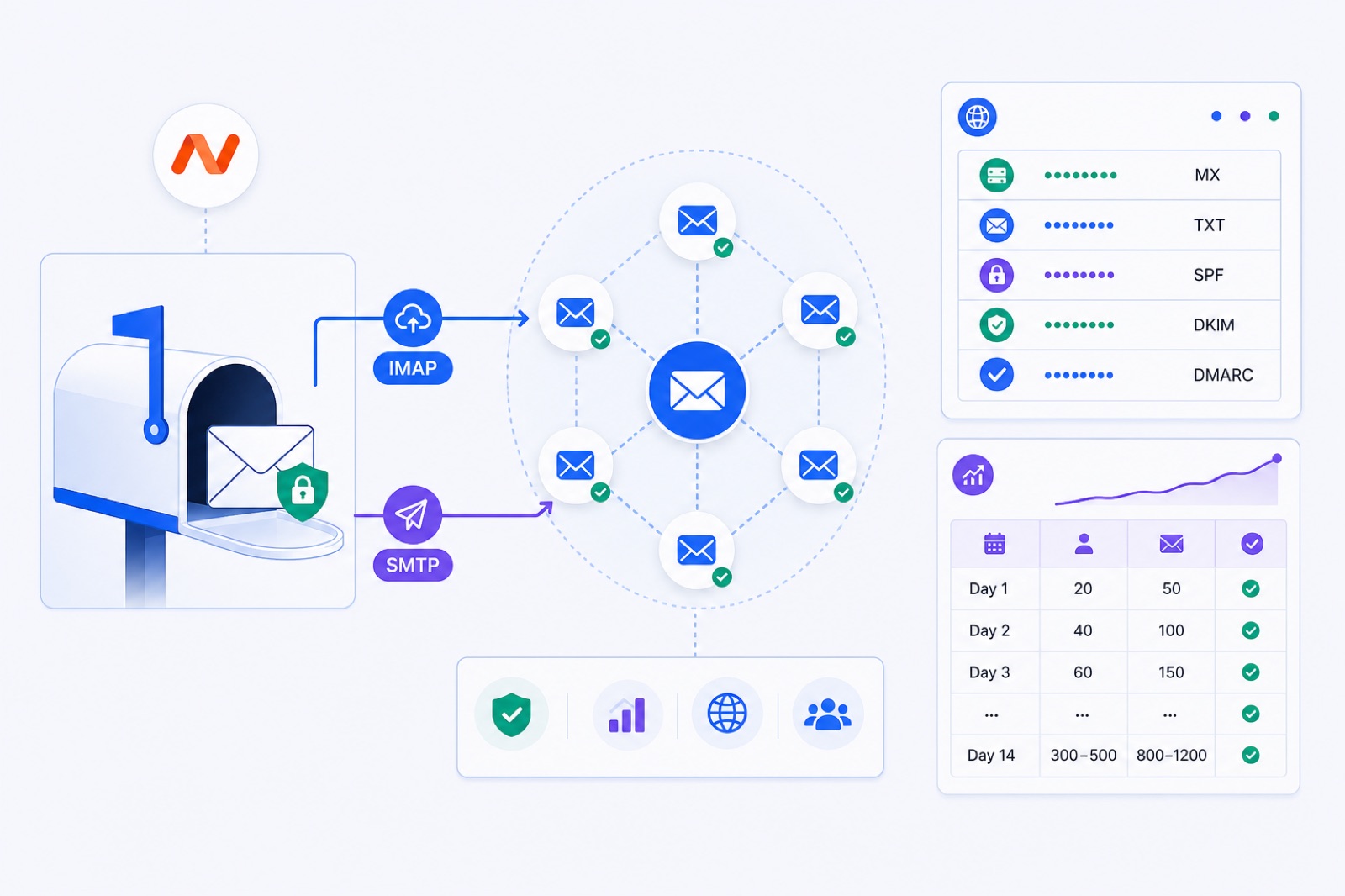
To warm up Namecheap Private Email, connect it by IMAP on mail.privateemail.com:993 SSL and SMTP on mail.privateemail.com:465 SSL, then ramp from 3 to 29 emails per day over 14 days. If you skip DNS checks or raise volume too fast, replies and outreach can land in spam. This guide gives the settings, DNS checks, ramp, errors and checklist.
You can do this with BobWork Email Warm-up, using the Other IMAP + SMTP route. Namecheap Private Email is a standard hosted mailbox, so setup depends on four things: correct ports, working SMTP login, SPF/DKIM/DMARC, and a slow sending pattern that receiving providers can trust.
These settings were verified for Namecheap Private Email on 17 October 2026. Provider settings can change, so check Namecheap’s current help pages before you edit DNS or troubleshoot a login.
How do you warm up Namecheap Private Email?
Namecheap provides the mailbox. Recipient providers decide whether each message reaches the inbox, spam folder or rejection path.
Warm-up does not override bad authentication. It also does not make a poor list safe. It creates normal mailbox activity before you send real campaigns: short messages, replies, spacing between sends and spam-folder rescue for warm-up mail.
BobWork starts a mailbox at 3 warm-up emails per day, adds 2 per day, and caps the default ramp at 30 per day. The cap is editable per mailbox, up to 100, but you should not raise it early on a new domain.
The engine sends during 09:00–18:00 in the mailbox’s own time zone. Weekends run at 30% volume. About 40% of received warm-up mail gets a reply, and threads end after 3 messages. The warm-up strategy explains the timing before you connect more mailboxes.
By default, BobWork uses a shared warm-up network. One Namecheap mailbox is enough to start because it exchanges warm-up mail with other active mailboxes on the service. If you prefer, switch to a private pool per account under Mailbox pool → Pool mode. A private pool needs at least two mailboxes.
Which settings should you use?
Use these values when you add Namecheap Private Email through an IMAP and SMTP connection.
| Setting | Value |
|---|---|
| BobWork preset | Other IMAP + SMTP |
| IMAP host | mail.privateemail.com |
| IMAP port | 993 |
| IMAP security | SSL |
| SMTP host | mail.privateemail.com |
| SMTP port | 465 |
| SMTP security | SSL |
| SMTP fallback | 587 STARTTLS |
| Username | Full email address |
| Password type | Mailbox password; application password also works |
Use the same full email address for IMAP and SMTP. A common error is entering only the local part, such as alex, instead of alex@example.com.
If port 465 fails, retry SMTP on mail.privateemail.com with port 587 and STARTTLS. Keep IMAP on port 993 with SSL.
Namecheap’s current mailbox-client instructions are the source of truth. Start with Namecheap’s email client setup documentation if the ports or security options change.
How do you connect it?
Add the mailbox as an IMAP and SMTP account. Use the Other IMAP + SMTP preset because Namecheap Private Email is not a one-click OAuth provider.
Step 1: Confirm webmail access
Sign in to Namecheap Private Email webmail first. Send one test email to a separate address and reply to it.
This proves the mailbox exists, the password works and outbound sending is allowed. If webmail cannot send, do not start warm-up yet.
Step 2: Add the mailbox
In BobWork, choose the Other IMAP + SMTP route. Enter the full mailbox address, then use these server values:
- IMAP host:
mail.privateemail.com - IMAP port:
993 - IMAP security: SSL
- SMTP host:
mail.privateemail.com - SMTP port:
465 - SMTP security: SSL
- Password: mailbox password, or an application password if you use one
If SMTP fails on 465, retry with port 587 and STARTTLS.
Step 3: Choose pool mode
Keep the shared warm-up network if you want one mailbox to start immediately. The free pool handles sending, replies, spam-folder rescue and archiving for warm-up mail automatically.
Switch to a private pool only if you want your own mailboxes to warm each other. Use Mailbox pool → Pool mode. In private mode, you need at least two connected mailboxes.
Step 4: Let checks run
BobWork checks SPF, DKIM and DMARC daily via DNS and shows them per domain. DKIM selectors checked include common names such as default, mail, dkim, k1, s1, selector1 and selector2.
Warm-up mail is identified by the engine’s own hidden header. BobWork only moves, labels, reads or archives warm-up mail carrying that marker. Real mail is not read, moved or answered.
Which DNS records matter?
Do DNS before volume. A mailbox can connect correctly and still have poor deliverability if the domain is unauthenticated.
Recipient systems typically evaluate authentication, domain history, complaints, bounce behaviour, sending consistency and engagement. Warm-up helps only after those basics are clean.
For a Namecheap Private Email mailbox, check these controls before the first real campaign.
| Area | What to check | Why it matters |
|---|---|---|
| SPF | The domain authorises Namecheap Private Email to send | Helps receivers verify the sending host |
| DKIM | Namecheap signs messages with your domain | Protects message integrity and supports alignment |
| DMARC | The domain publishes a policy | Tells receivers how to handle SPF/DKIM results |
| Reply path | Replies and bounces work | Failed replies and bounces weaken sender signals |
| Volume | Sends grow slowly | Sudden spikes are risky for new domains |
| Complaints | Keep complaint rates low | Google recommends staying under 0.1% and never above 0.3% |
| Content | Plain, relevant, no deceptive copy | Warm-up cannot fix spammy content |
If you send bulk mail to Gmail or Yahoo users, you need aligned authentication and working unsubscribe handling. Yahoo’s sender guidance requires SPF and DKIM, DMARC at least p=none, aligned authentication, and spam rate under 0.3%. Google publishes the same 0.1% target and 0.3% ceiling in its email sender guidelines.
This page is about mailbox warm-up, not list permission. Do not use warm-up to push purchased or scraped lists. If bounce rate or spam placement rises, stop sending and fix the cause first.
Namecheap’s exact SPF and DKIM values can vary by product setup and DNS host. Check Namecheap’s SPF, DKIM and DMARC documentation before adding records.
| Record | Host/name | Value to use | How to verify |
|---|---|---|---|
| SPF | Usually @ or the root domain | Use Namecheap Private Email’s current SPF include mechanism. If SPF already exists, merge it into one TXT record. | Run the SPF checker |
| DKIM | Usually a selector under _domainkey | Use the selector and TXT value shown by Namecheap Private Email. Do not guess the selector. | Run the DKIM checker |
| DMARC | _dmarc | Start with a monitoring policy such as v=DMARC1; p=none; rua=mailto:dmarc@yourdomain.com if you can receive reports. | Run the DMARC checker |
Only publish one SPF TXT record per domain. SPF is defined in RFC 7208, and multiple SPF records can cause evaluation errors.
Start DMARC at p=none while you test. Move to stricter policies only after all legitimate senders are aligned.
If your domain also sends from a CRM, newsletter tool or SMTP relay, keep those senders in the same SPF and DMARC plan. Do not replace a working SPF record blindly.
For a deeper plain-English walkthrough, use the SPF, DKIM and DMARC guide before you edit production DNS.
What ramp should you follow?
Use this ramp for an existing Namecheap Private Email mailbox on a domain that already has correct DNS. For a new domain, 2–3 weeks is safer. Keep real outreach very low or wait until the mailbox passes readiness checks.
BobWork’s default ramp is 3 emails per day, then +2 per day, capped at 30. Over the first 14 days, that reaches 29 emails per day.
| Day | Warm-up emails/day | What to do |
|---|---|---|
| 1 | 3 | Connect mailbox and confirm SPF, DKIM, DMARC |
| 2 | 5 | Check SMTP sends and IMAP receives |
| 3 | 7 | Watch for connection failures |
| 4 | 9 | Keep real sending near zero |
| 5 | 11 | Check spam placement trend |
| 6 | 13 | Fix any DNS warning before adding volume |
| 7 | 15 | Review 7-day spam rate |
| 8 | 17 | Start only light manual replies if needed |
| 9 | 19 | Keep content plain and low-risk |
| 10 | 21 | Check domain authentication again |
| 11 | 23 | Avoid importing large lists |
| 12 | 25 | Prepare campaign copy, but do not spike volume |
| 13 | 27 | Confirm bounces stay low |
| 14 | 29 | Check readiness before outbound |
Weekends run at 30% of weekday volume in BobWork. Sends are spread across 09:00–18:00 in the mailbox’s own time zone and decided every 15 minutes with randomness. A pair of mailboxes does not write to each other twice within 3 hours.
If you need a longer plan, use the warm-up schedule generator or follow the 14-day and 28-day examples in the email warm-up schedule guide.
During live campaigns, keep warm-up running at 10–15 emails per day. Typical cold outreach should stay around 30–50 real emails per day per mailbox. Add mailboxes rather than forcing one mailbox to carry all volume.
If a mailbox rises above a 5% spam rate, pause it for a few days and fix the cause. BobWork’s spam rate is the share of a sender’s warm-up mail that receiving mailboxes found in Spam over the last 7 days.
How do you fix errors?
Most Namecheap Private Email failures are input or security-mode errors. Fix connection first, then DNS, then volume.
| Error | Likely cause | Fix |
|---|---|---|
| IMAP login failed | Wrong username or password | Use the full email address and test the password in webmail |
| SMTP authentication failed | Wrong password or blocked port | Use the mailbox password or application password; try 587 STARTTLS if 465 fails |
| Cannot connect to server | Hostname typo or network block | Use mail.privateemail.com; check firewall rules |
| SSL or certificate error | Wrong security mode | Use SSL on 993 for IMAP and SSL on 465 for SMTP |
| Sends work, receives fail | IMAP settings wrong | Recheck host, port and SSL mode |
| Receives work, sends fail | SMTP settings wrong | Recheck SMTP host, port, security and authentication |
| DNS shows missing SPF | SPF absent or duplicated | Add Namecheap’s current SPF include to one SPF record |
| DKIM not found | Selector mismatch | Use the selector shown by Namecheap, not a guessed selector |
| DMARC missing | No _dmarc TXT record | Add a DMARC TXT record and verify it |
Do not fix a connection problem by lowering security. Use the correct SSL or STARTTLS option instead.
Do not change several settings at once. Test IMAP, then SMTP, then DNS. That makes the failing layer obvious.
If a newly connected mailbox gets locked or rate-limited, stop automation and confirm access in webmail. Then restart at a lower cap. Check Namecheap’s current sending limits rather than assuming a fixed daily limit.
What should you verify now?
Use this checklist before the first campaign. Each item must be verifiable.
| Step | Action | How to verify |
|---|---|---|
| 1 | Sign in to Namecheap webmail | You can send and receive a manual test email |
| 2 | Add SPF for Private Email | The SPF checker shows one valid SPF record |
| 3 | Add DKIM | The DKIM checker finds the Namecheap selector |
| 4 | Add DMARC | The DMARC checker finds _dmarc |
| 5 | Connect IMAP | BobWork can read the mailbox over mail.privateemail.com:993 SSL |
| 6 | Connect SMTP | BobWork can send through mail.privateemail.com:465 SSL |
| 7 | Start warm-up | Day 1 begins at 3 warm-up emails |
| 8 | Keep weekends low | Weekend volume runs at 30% |
| 9 | Review spam rate | Pause if the 7-day spam rate rises above 5% |
| 10 | Check readiness | Mailbox has 7+ days warming, spam rate ≤3%, and 30+ warm-up emails received |
A mailbox is ready for outbound in BobWork when it has warmed for at least 7 days, has a 7-day spam rate of 3% or lower, and has received at least 30 warm-up emails.
That is the minimum gate. For a new domain, wait longer. Two to three weeks gives receiving providers more normal history before you ask the mailbox to carry sales volume.
When you start outreach, keep the first campaign small. Use plain text, relevant copy and a working unsubscribe path if the mail is bulk. A reply should stop the sequence for that contact.
If you want to send from the same warmed mailbox, BobWork Outbound can send cold email from mailboxes that pass the ready gate. It is pay as you go at $2 per 1,000 emails sent, and warm-up keeps running on the same mailboxes while they send.
You do not need to pay to warm up Namecheap Private Email. Connect the mailbox through Other IMAP + SMTP, verify DNS with the free tools, and let the ramp run before you send real volume.
Frequently asked questions
Can I warm up Namecheap Private Email with IMAP and SMTP?
Yes. Use IMAP mail.privateemail.com on port 993 with SSL, and SMTP mail.privateemail.com on port 465 with SSL. Port 587 with STARTTLS can also work for SMTP. Connect it in BobWork with the Other IMAP + SMTP preset.
Do I need an app password for Namecheap Private Email?
Use the mailbox password. An application password also works if you have one configured. If login fails, confirm the full email address is used as the username and test the same password in webmail first.
What SPF record should I add for Namecheap Private Email?
Add the SPF TXT record that Namecheap currently gives for Private Email. Do not publish two separate SPF records on the same domain. If you already have SPF, merge Namecheap’s include mechanism into the existing record.
How long should I warm up a Namecheap mailbox?
Use at least 14 days for a normal mailbox ramp. For a new domain, 2–3 weeks is safer. BobWork marks a mailbox ready after 7+ days warming, a 7-day spam rate of 3% or lower, and at least 30 warm-up emails received.
Should I use port 465 or 587 for SMTP?
Use smtp.privateemail.com on port 465 with SSL first. If your network or host blocks 465, try port 587 with STARTTLS. Keep IMAP on mail.privateemail.com port 993 with SSL.
Can I send cold email while warming up?
Yes, but keep early volume low. A typical safe range is up to 30–50 real cold emails per day per mailbox after warm-up. Keep warm-up running at 10–15 per day during campaigns and pause if spam placement rises.
Does BobWork support Outlook for this setup?
No. BobWork does not support Outlook or Microsoft 365 yet because Microsoft requires OAuth. Namecheap Private Email is supported through standard IMAP and SMTP using the Other IMAP + SMTP route.
Warm this mailbox up for free
Connect it in a minute. It warms on the shared network or in your own private pool, ramps 3 to 30 a day, and the dashboard tells you when you are ready.