 Email Warm-up
Zoho Mail Blocked for Unusual Sending Activity: Fix and Restart
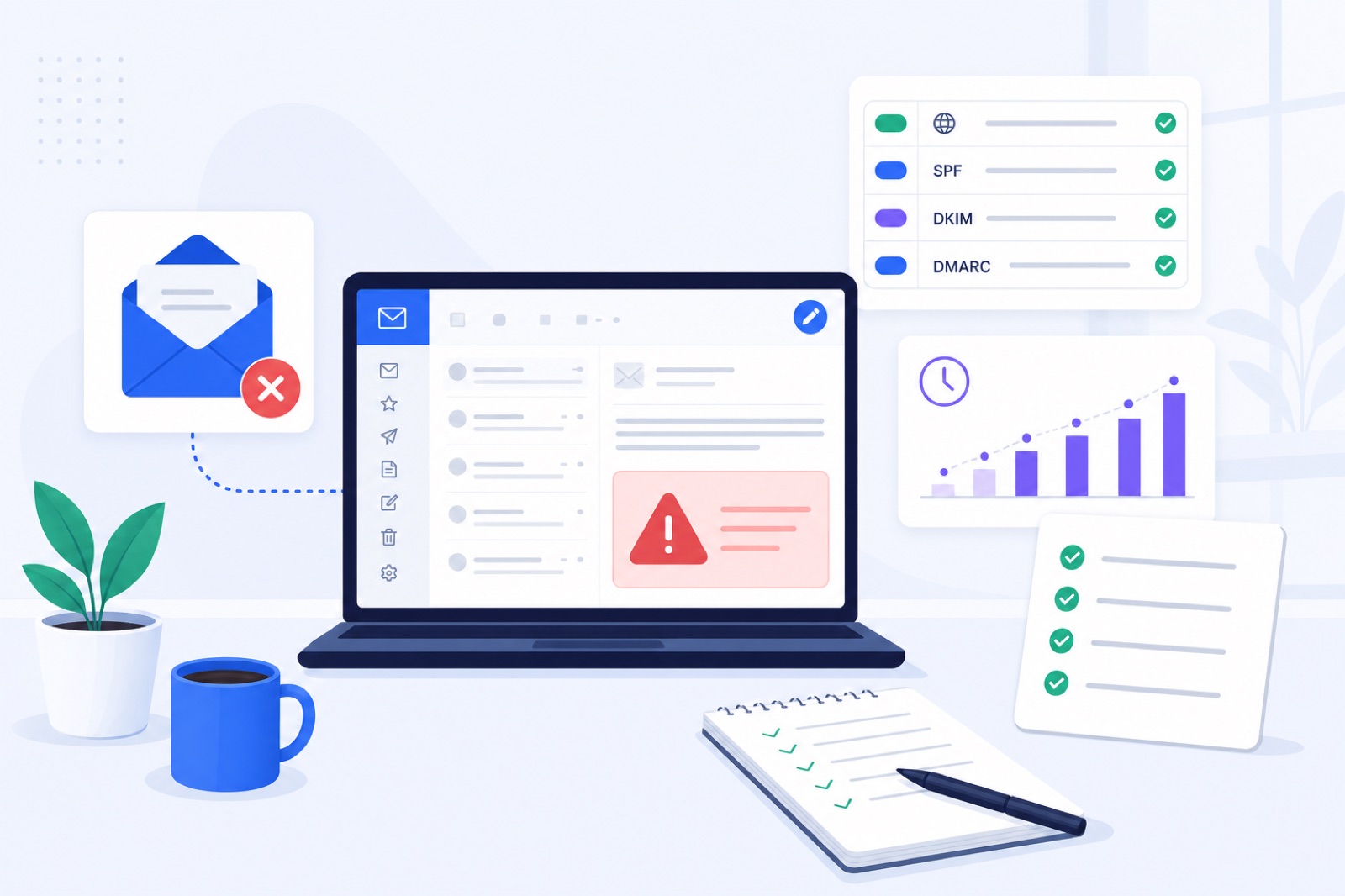
If Zoho Mail blocked a mailbox for unusual sending activity, pause every sender, secure the account, check Zoho’s current limits, then restart at 3–5 sends per day. If you keep campaigns or SMTP retries running, the block can return and may affect more users. This guide gives the triage order, limit checks, and restart pace.
A Zoho sending block is usually a pattern problem. It can come from a new cold email campaign, a compromised mailbox, a misconfigured SMTP tool, or a normal user sending far above their usual pace. If this is a new outbound setup, use the Zoho Mail warm-up guide after the block is cleared.
Do not use old forum numbers as your cap. Zoho’s exact allowance can vary by plan, account type, verification status, and sending method. Check Zoho’s current usage policy and your own Admin Console before raising volume.
Why is Zoho Mail blocked?
Zoho’s warning usually means the mailbox cannot send, or some sends are being rejected. The account may still receive mail. Treat the warning as a safety stop until you know what changed.
The most common trigger is a sudden sending jump. A fresh mailbox that moves from normal human use to campaign volume can look unsafe, even when the content is not malicious.
A compromised mailbox can look the same. If someone logs in and sends spam, Zoho may block outbound mail even though you did not start a campaign. Check security before you treat the issue as only deliverability.
SMTP automation can also create the pattern. A campaign tool may retry failed sends, use stale credentials, or send from several systems in a short period. Those failures add noise while Zoho is already limiting the account.
Weak authentication may not be the only reason for the block, but it makes every other signal worse. SPF, DKIM, and DMARC should pass for the domain you use in the From address.
| Trigger | What it looks like | First check |
|---|---|---|
| Sudden volume jump | A new campaign sends many messages on day one | Campaign logs and Sent folder |
| Failed deliveries | Many bounces or invalid recipients | Bounce inbox and suppression list |
| SMTP automation | Retries, auth failures, or wrong credentials | SMTP logs and connected apps |
| Suspicious login | New country, device, or IP pattern | Zoho account security activity |
| Weak DNS authentication | SPF, DKIM, or DMARC fails | Domain DNS records |
| Spam-like campaign | Repeated copy, links, attachments, or poor targeting | Latest outbound sequence |
| Plan limit pressure | Sends approach the current account allowance | Zoho usage policy and Admin Console |
If more than one row applies, fix security and list quality before you ask for higher sending volume.
What is blocked?
Find the scope before you change settings. Do not assume the whole domain is blocked because one mailbox failed.
Send one plain-text message from the blocked mailbox to another mailbox you control. Use one recipient and no links. Then reply back. This checks outbound and inbound separately.
Test another Zoho mailbox on the same domain. If only one user fails, start with user-level security, credentials, and campaigns. If several users fail, review domain authentication, shared tools, and organisation-level sending.
Save the exact error text. You may see a webmail warning, an SMTP rejection, a non-delivery report, or a campaign-tool error. Zoho support will need the precise message if self-service unblock is not available.
Pause every system that can send as the blocked user: cold email tools, CRM workflows, invoice systems, alerts, newsletters, and SMTP relays. If the Sent folder keeps growing, something is still active.
Review connected apps and passwords. Remove anything you do not recognise. If you use IMAP or SMTP, confirm the app was authorised by you and is sending at the pace you intended.
For mail-client settings, use Zoho’s official SMTP configuration. Wrong ports, old passwords, and repeated authentication failures can distract from the real cause.
How do you fix it?
Fix the account in this order. The goal is not only to lift the block. It is to avoid triggering the same block tomorrow.
Stop all sending
Pause campaigns, newsletters, CRM automations, invoices, alerts, and any tool that sends from the mailbox. If a tool has multiple connected mailboxes, disable the blocked user inside the tool.
Check the Sent folder after pausing. If messages still appear, another app is sending.
Secure the account
Change the mailbox password if takeover is possible. Enable two-factor authentication where available. Review recent sessions and remove unknown devices.
If several users are affected, ask your admin to review organisation-level app access. One shared automation can create the same pattern across multiple mailboxes.
Remove risky recipients
Export recent bounces and suppress those contacts in every tool. Remove addresses that have not opted in, have bounced before, or came from a poor source.
A safe outreach workflow verifies lists before sending, suppresses bounces forever, honours unsubscribes, and stops a sequence when a contact replies.
Check SPF, DKIM, and DMARC
Confirm SPF, DKIM, and DMARC exist and pass for the sending domain. Zoho has official guides for SPF configuration and DKIM setup.
Use DMARC at least at p=none while you monitor. Move to a stricter policy only after legitimate mail passes. If you send through other platforms, include those senders in SPF or use aligned DKIM where possible.
You can also run quick checks with the free SPF checker, DKIM checker, and DMARC checker. These checks will not lift a Zoho block by themselves, but they remove common restart risks.
Ask Zoho to lift it
If Zoho shows an unblock action inside the account, use it after the checks above. If Zoho tells you to contact support, send a short factual note.
Include the blocked email address, when it started, the exact error text, and what you changed. Say that campaigns are paused, credentials are secured, DNS is checked, and failed recipients are removed.
Do not promise to resume high-volume sending immediately. Show that the mailbox will restart gradually and stay below the plan’s current allowance.
Which limits matter?
Zoho publishes usage and sending rules, but the exact allowance can depend on the plan and account state. Check Zoho’s current usage policy and your Admin Console before setting campaign caps.
Use the table below to separate official limits from safe operating limits. The warm-up numbers are conservative restart guidance, not Zoho plan quotas.
| Item | Number or source | How to use it |
|---|---|---|
| Zoho per-plan sending limit | Check Zoho usage policy and Admin Console | Treat it as a ceiling, not a target |
| Restart after block | 3–5 real sends/day | Use for the first quiet days |
| Existing domain warm-up | 7+ days | Use before normal cold outreach resumes |
| New domain warm-up | 2–3 weeks | Use before meaningful campaign volume |
| Warm-up starting point | 3 emails/day | Safe starting pace after a block |
| Warm-up ramp | +2 emails/day | Increase only while sends succeed |
| Normal warm-up cap | 30/day | Enough for reputation maintenance |
| Campaign-time warm-up | 10–15/day | Keep running during real outreach |
| Cold outreach ceiling | 30–50/day per mailbox | Add mailboxes instead of pushing one harder |
| Pause threshold | Above 5% warm-up spam rate | Pause for a few days and diagnose |
| Ready gate | 7 days, spam rate ≤10%, 30 received | Use before outbound from that mailbox |
A provider limit is not the same as a safe outreach limit. A mailbox may be technically allowed to send more than it should. Deliverability depends on complaints, bounces, engagement, content, authentication, and sending history.
For cold email, the safer pattern is more warmed mailboxes at modest volume. One mailbox sending hundreds of cold emails daily is riskier than several mailboxes sending smaller amounts.
If you need more total volume, add domains and mailboxes carefully. Do not rotate domains to evade blocks. That usually creates a larger reputation problem.
How should you restart?
After Zoho lifts the block, do not restart the paused campaign at its old cap. Start with quiet, normal-looking activity.
Send a few real one-to-one messages first. Reply to existing threads. Avoid links, images, attachments, and sales wording while the mailbox is recovering.
For an existing domain, warm the mailbox for at least seven days before normal cold outreach resumes. For a new domain, use two to three weeks before meaningful campaign volume.
BobWork Email Warm-up supports Zoho Mail through the Zoho Mail API using a Self Client code, including Zoho’s free plan. IMAP is also available on Mail Lite and higher. The free pool starts at 3 emails per day, adds 2 per day, and caps at 30 unless you edit the mailbox cap.
BobWork uses a shared warm-up network by default, or a private pool per account if you prefer. One mailbox is enough to start in the shared network. A private pool needs at least two mailboxes because only your own mailboxes write to each other.
Warm-up mail should be plain office correspondence: short openers, replies, and thread endings. It should not be promotional. If you want the ramp mechanics, see the warm-up schedule guide or the engine behaviour page.
When you restart cold email, keep warm-up running at 10–15 messages per day. Keep real outreach around 30–50 messages per day per mailbox. If you need more volume, add mailboxes gradually rather than raising one sender.
Do this now
Use this checklist before you request an unblock or restart sending. The first hour should remove the active risk, not tune campaign copy.
| Step | Action | How to verify |
|---|---|---|
| 1 | Pause every sender and automation | Sent folder stops growing |
| 2 | Test send and receive manually | One plain message sends and receives, or you capture the error |
| 3 | Check other users on the domain | Another mailbox passes or fails the same test |
| 4 | Review logins and connected apps | Unknown sessions and apps are removed |
| 5 | Change password if suspicious | Old credentials no longer work |
| 6 | Export and suppress bounces | Failed recipients are removed from every tool |
| 7 | Check SPF, DKIM, and DMARC | Records exist and align with Zoho sending |
| 8 | Check Zoho’s current plan limit | Your cap is below the current allowance |
| 9 | Contact Zoho if required | Support receives the error, address, and fixes made |
| 10 | Restart at warm-up pace | First days send 3–5 real messages, not campaign volume |
If step 1 fails, stop. A hidden automation can keep triggering the same block while you fix everything else.
If step 7 fails, fix DNS before you restart. Authentication does not prove recipients want the mail, but missing authentication makes filtering and policy checks harder.
How do you prevent repeats?
Prevention is mostly pacing, hygiene, and separation. A mailbox should not move from no history to full campaign volume in one day.
Use separate mailboxes for different jobs. Do not send cold outreach, billing notices, support replies, and internal operations from the same address if one stream might generate complaints.
Start real outreach at 10–20 per day after warm-up. Move toward 30–50 only if bounces and spam placement stay low. If you see problems, reduce volume before Zoho forces you to.
Avoid heavy templates. The same subject, same body, same link, and same call to action across many recipients is easy to classify. Personalisation helps only when the list and offer are relevant.
Stop on replies. Honour unsubscribes quickly. Keep bounces suppressed forever at the account level.
Use one-click unsubscribe for bulk-style outreach where applicable. Some mailbox providers require it for bulk senders. Even when the rule does not apply to your exact volume, easy opt-out can reduce complaints.
Monitor signals that reflect real delivery. Watch bounces, replies, spam placement from receiving mailboxes, and DNS status. A low sending volume does not guarantee inbox placement.
BobWork measures spam landings directly inside receiving mailboxes. It does not use third-party seed lists. In the dashboard, spam rate is the share of a sender’s warm-up mail that receiving mailboxes found in Spam over seven days.
Pause a mailbox for a few days if the warm-up spam rate rises above 5%. Check DNS, campaign copy, list source, and recent volume changes before you resume.
If Gmail is part of your recipient mix, keep complaint rates low. Google’s sender guidance says complaint rate should stay under 0.1% and never reach 0.3%. That is a useful benchmark even when the sending mailbox is Zoho.
If you want an automated restart path, connect Zoho to BobWork Email Warm-up. It is free with no credit card and no time limit for up to 10 mailboxes per person or company domain. Warm-up can keep running while you later send modest campaigns from the same mailbox.
Frequently asked questions
Why did Zoho Mail block my sending?
Zoho may block sending after unusual activity such as a sudden volume jump, repeated failed deliveries, suspicious logins, SMTP automation, or behaviour that looks unlike the mailbox’s normal pattern. Check campaigns, login activity, bounces, and connected apps before asking for the block to be lifted.
Can I still receive email when Zoho blocks sending?
Often, the block affects outbound sending first. Receiving may still work, but you should test both directions. Send a small internal message, then reply from another mailbox. If receiving also fails, treat it as an account or domain configuration problem, not only a sending block.
Where do I check Zoho Mail sending limits?
Use Zoho’s current usage policy and your Zoho Admin Console because limits can vary by plan, account type, verification status, and sending method. Do not rely on old blog posts for exact per-plan limits.
Should I keep sending cold email after Zoho blocks me?
No. Stop campaigns first. Continuing to send can create more bounces, more complaints, and more failed SMTP attempts. Fix authentication, remove risky contacts, secure the account, then restart at low daily volume.
How long should I warm up Zoho Mail after a block?
Use at least seven quiet days for an existing domain. Use two to three weeks for a new domain or a mailbox that was blocked after aggressive sending. Restart cold outreach only after the mailbox has low spam placement and stable successful sends.
Can BobWork warm up a free Zoho Mail account?
Yes. BobWork Email Warm-up supports Zoho Mail through the Zoho Mail API using a Self Client code, including Zoho’s free plan. IMAP is also available on Mail Lite and higher. BobWork does not support Outlook yet.
Warm up your mailboxes free
Connect Gmail, Google Workspace, Zoho or Lark. Your mailboxes warm on a shared network, or in a private pool of your own, starting today.