 Email Warm-up
Gmail Emails Going to Spam? Fix These 9 Causes First
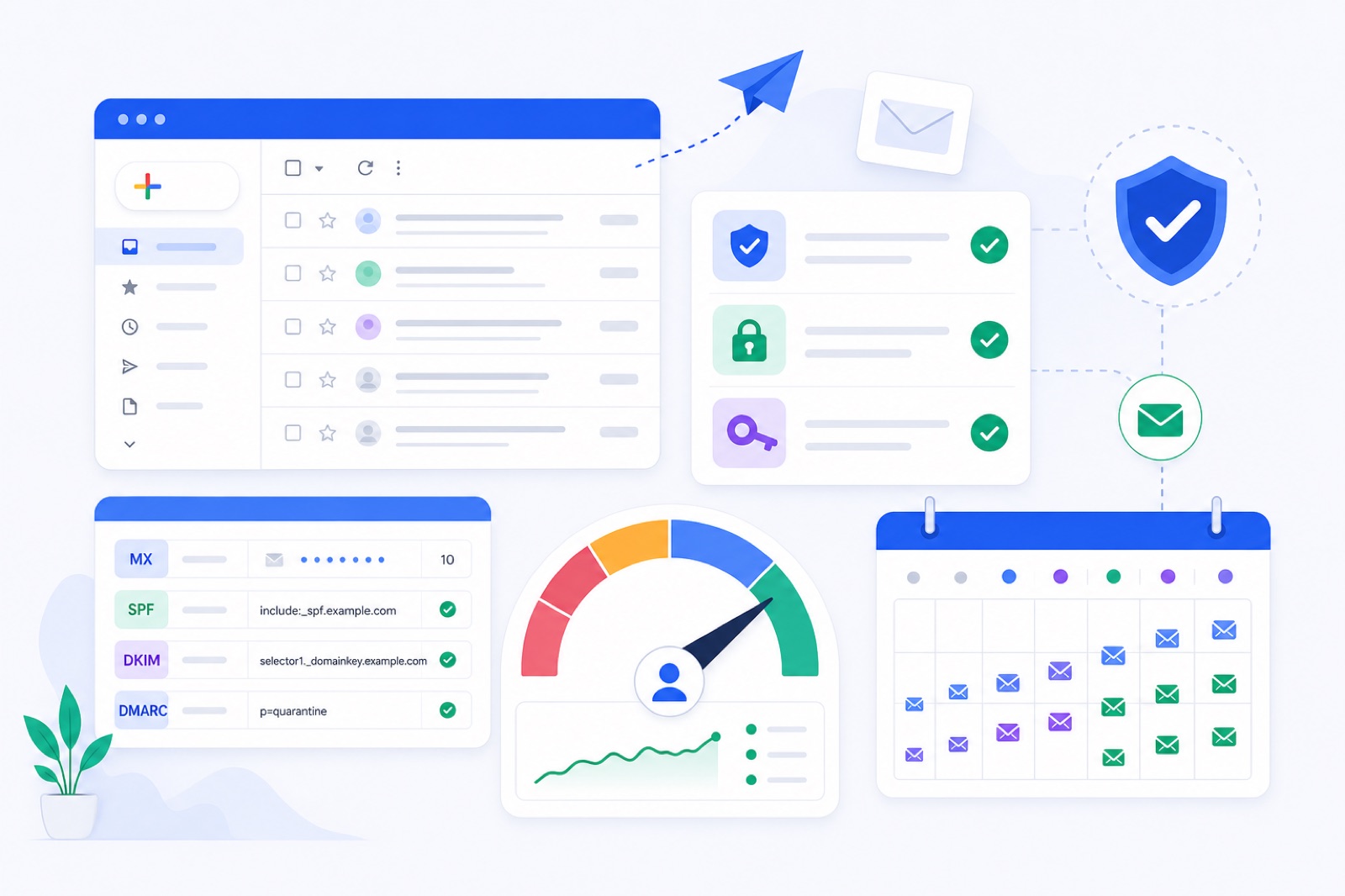
Gmail emails going to spam usually means one of 9 things is broken: authentication, DMARC alignment, complaint rate, unsubscribe, sending pattern, new-account reputation, list quality, content, or mailbox health. Ignore it and Gmail will keep routing more mail away from the inbox. Start with the checks below, then repair volume and reputation.
If the mailbox is new or recently damaged, do not send harder. Use a cautious ramp while you fix the cause. Our Gmail warm-up guide covers setup, and the free warm-up tool can keep a Gmail or Google Workspace mailbox active during repair.
Gmail filtering is a stack of identity, reputation and recipient behaviour signals. DNS failures need DNS work. Complaint problems need list and offer work. New-account problems need time and consistent good mail.
How do you fix gmail emails going to spam?
Run these 9 fixes in order. Do not rewrite every email before you check authentication. Gmail cannot trust a message if the sending identity is unclear.
1. Publish SPF
SPF tells receiving servers which systems may send mail for your domain. For Google Workspace, the SPF record usually sits on the root domain as a TXT record.
A typical Google Workspace SPF value is:
v=spf1 include:_spf.google.com ~all
Publish only one SPF record per domain. If you use a campaign platform, add its include mechanism to the same record. Do not create a second SPF TXT record.
Use our SPF checker to confirm the record resolves from public DNS.
2. Turn on DKIM
DKIM signs the message with your domain. Gmail can verify that the message was not changed in transit.
In Google Admin, go to Apps → Google Workspace → Gmail → Authenticate email. Generate the DKIM record, publish the TXT record in DNS, wait for propagation, then click Start authentication.
Use a 2048-bit key where your DNS provider supports it. Check the live selector with our DKIM checker.
3. Add DMARC
DMARC tells Gmail what to do when SPF or DKIM does not align with the visible From domain. Start with monitoring if you are unsure.
A safe starting record is:
v=DMARC1; p=none; rua=mailto:dmarc@yourdomain.com
Publish it as a TXT record at _dmarc.yourdomain.com. Once you understand every legitimate sender, move toward a stricter policy.
Check it with our DMARC checker.
4. Align the From domain
Alignment means the domain users see in the From address matches, or shares an organisational domain with, the domain that passed SPF or DKIM.
For example, mail from alex@example.com should pass SPF or DKIM using example.com or an aligned subdomain. If your tool sends through its own domain, Gmail may trust the message less.
For cold outreach, keep the visible From domain, DKIM signing domain and reply domain consistent where possible.
5. Keep complaints below Google’s limit
Google’s sender guidelines say to keep spam complaint rates below 0.10% and avoid ever reaching 0.30% or higher. Treat 0.10% as the normal operating ceiling.
Check complaint data in Google Postmaster Tools when your domain has enough volume. If complaints rise, reduce or pause sends. Remove weak sources, suppress unengaged contacts and rewrite the offer.
6. Add one-click unsubscribe
If you send subscribed marketing or bulk email, Gmail expects easy unsubscribe. Google’s sender rules require one-click unsubscribe for applicable marketing messages, and RFC 8058 defines the List-Unsubscribe-Post mechanism.
Cold one-to-one outreach still needs a clear opt-out. It may not use the same list-unsubscribe header, but the recipient must be able to stop mail without friction.
7. Slow the sending ramp
A new Gmail or Google Workspace mailbox should not jump from zero to campaign volume. Gmail has little history for the account, domain and pattern.
For an existing domain, warm for 14 days. For a new domain, use 3–4 weeks. Our email warm-up schedule shows the day-by-day ramp.
During outreach, keep real cold email volume conservative. A typical safe range is 30–50 real outreach emails per mailbox per day, assuming clean lists and low complaints. Add mailboxes instead of forcing one mailbox to carry all volume.
8. Remove risky contacts
Bad lists create bounces, complaints and silent negative engagement. Do not send to scraped, old or role-heavy lists without cleaning.
Remove role accounts if they are not relevant, such as info@, admin@, support@ and sales@. Suppress opt-outs. Avoid addresses that have no clear business reason to receive your message.
If a campaign starts producing complaints, pause it before the domain gets worse.
9. Simplify content
Gmail reads content alongside reputation. Content alone rarely fixes a broken domain, but bad content can make a weak sender worse.
Start with plain text. Use a real first-name greeting. Avoid link-heavy copy, URL shorteners, large images, attachments, all-caps claims and misleading subject lines. If you need links, use your own domain and keep the first message light.
For wider diagnosis, use our guide to why emails go to spam.
Which numbers matter first?
Use thresholds before opinions. If one of these numbers is outside range, fix it before testing new subject lines.
| Area | Number or threshold | What it means | What to do |
|---|---|---|---|
| Google complaint rate | Keep under 0.10%; never 0.30%+ | Gmail users are marking mail as spam | Pause or reduce sends, clean lists, improve targeting |
| Bulk sender line | 5,000+ messages/day to Gmail accounts | Google bulk sender rules apply | Follow authentication, DMARC, unsubscribe and format rules |
| Existing domain warm-up | 14+ days | Enough time for a cautious ramp | Warm before full outreach |
| New domain warm-up | 3–4 weeks | New domains need more history | Delay scale and keep volume low |
| BobWork ramp | Starts 3/day, +2/day, cap 30/day | Gradual mailbox activity | Keep cap low during repair |
| Campaign maintenance warm-up | 10–15/day typical | Keeps normal activity while sending | Do not replace list hygiene with warm-up |
| Real outreach | 30–50/day typical per mailbox | Conservative cold outreach range | Add mailboxes instead of overloading one |
| BobWork spam pause trigger | Above 5% warm-up spam rate | Mailbox reputation needs rest | Pause a few days and fix causes |
| Ready gate | 14 days, ≤3% 7-day spam, 30 received | Mailbox has enough warm-up signal | Start small, then watch replies and complaints |
Google publishes its current sender requirements in its Email sender guidelines. Check them before high-volume sends because Gmail rules can change.
The 5,000-message threshold is not a target. It is the point where Google treats you as a bulk sender to Gmail accounts. If you are near it, act as if the stricter rules already apply.
How do you verify authentication?
Authentication issues are the cleanest problems to solve. They are also easy to miss after a platform or DNS change.
Re-check all records if you moved from Gmail to a sending platform, added a sales engagement tool, changed DNS providers, or started sending from a subdomain. A record that worked last year may not cover the system sending today.
Use this order:
- Confirm SPF exists and includes every legitimate sender.
- Confirm DKIM is signing live mail.
- Confirm DMARC exists at
_dmarc. - Confirm SPF or DKIM aligns with the visible From domain.
- Send a test to Gmail and inspect the original headers.
In Gmail, open the received message, click the three dots, then Show original. Look for SPF, DKIM and DMARC results. You want pass results, not only DNS records that exist.
Do not rely on “domain verified” inside your sending tool as the final check. That usually means the tool found its records. It does not always prove alignment with your visible From address in live mail.
If you use subdomains, authenticate each sending subdomain. mail.example.com and example.com are related, but each sending path still needs the right records.
Are you compliant with Gmail bulk rules?
Gmail’s bulk sender requirements focus on authenticated identity, low complaints and easy unsubscribe.
The rules apply most directly to senders who send 5,000 or more messages per day to Gmail accounts. Smaller senders should still follow the same pattern. Gmail does not need to wait for 5,000 messages to distrust sloppy mail.
For marketing or subscribed bulk mail, add both unsubscribe methods:
- A visible unsubscribe link in the message body.
- One-click unsubscribe headers using the standard mechanism.
Your email service provider usually handles one-click headers. If you send through custom infrastructure, ask your developer to implement List-Unsubscribe and List-Unsubscribe-Post: List-Unsubscribe=One-Click according to RFC 8058.
For cold outreach, do not hide the exit. A simple “Reply stop and I will not contact you again” is better than making recipients report spam. Honour opt-outs immediately.
Also check message formatting. Use a valid From address, a working reply address and no impersonation. Avoid forwarding chains that break authentication. If you use tracking domains, authenticate them and keep them consistent.
Google recommends Postmaster Tools for domains with enough traffic. It can show spam rate, domain reputation and authentication data when Google has enough data.
How do you repair reputation?
If authentication passes and Gmail still sends mail to spam, treat it as a reputation problem.
Reputation comes from sending history, recipient engagement, complaints, bounces, spam-trap risk and consistency. You cannot force it back with one DNS edit. You need a quieter period with better signals.
Start by pausing risky outbound. If your list or offer caused complaints, warming while continuing the same campaign will not help. You will add positive activity on one side while damaging the mailbox on the other.
Then warm gradually. The goal is steady mailbox behaviour: sending, receiving, replies, inbox placement and rescue when warm-up mail lands in spam.
BobWork Email Warm-up uses a shared warm-up network by default, or a private pool per account if you prefer. The free pool does this step automatically: it starts at 3 emails per day, adds 2 per day, caps at 30 per day, and spreads sends between 09:00 and 18:00 in the mailbox’s time zone.
About 40% of received warm-up mail gets a reply, and threads end after 3 messages. Warm-up mail found in Spam is moved to Inbox, marked read, labelled “Warm-up” and archived after 24 hours. Only mail carrying the engine’s own hidden header is touched; real mail is never read, moved or answered.
For Gmail, you can connect with Google sign-in or IMAP with an app password. Google may show an unverified-app notice because the CASA audit has not been completed. If that is not acceptable in your organisation, use IMAP where your admin policy allows it.
Warm-up is not a guarantee of inbox placement. It cannot override broken DMARC alignment, poor lists or high complaints.
What sending patterns look risky?
Gmail dislikes sudden, unnatural changes. A mailbox that sends 8 emails one week and 400 the next week looks different. That does not prove spam, but it gives the filter more reason to inspect.
Keep these patterns stable:
- Send during normal working hours for the mailbox’s region.
- Avoid sending all messages at the same minute.
- Keep daily volume predictable.
- Avoid large batch sends from a fresh account.
- Do not run many unrelated campaigns from one mailbox.
- Separate transactional, marketing and cold outreach streams.
If you use Google Workspace, create dedicated mailboxes for outreach rather than sending campaigns from your main personal account. Keep each mailbox within conservative volume. Adding mailboxes is safer than turning one mailbox into a high-volume sender.
Do not create many new mailboxes and send from them immediately. New mailboxes on a new domain are the riskiest combination. Warm the domain and mailboxes first, then introduce outreach slowly.
If Gmail spam placement appears after a campaign launch, compare before and after:
- Daily sends per mailbox.
- Bounce rate direction.
- Complaint reports.
- Reply rate direction.
- New links or attachments.
- New sending platform.
- DNS changes.
The answer is often in the change log.
What should you do now?
Run this checklist in order. It keeps you from wasting a week on copy when the real issue is a missing DNS record.
| Step | Action | How to verify |
|---|---|---|
| 1 | Check SPF, DKIM and DMARC | Use DNS checkers and Gmail Show original |
| 2 | Confirm DMARC alignment | From domain aligns with SPF or DKIM domain |
| 3 | Check Google Postmaster Tools | Spam rate is below 0.10% where data is available |
| 4 | Review unsubscribe setup | Marketing mail has visible and one-click unsubscribe |
| 5 | Pause risky campaigns | Daily sends drop and complaints stop rising |
| 6 | Clean the list | Bounces, role accounts and opt-outs are removed |
| 7 | Reduce links and attachments | First-touch copy is plain text and low friction |
| 8 | Warm the mailbox | 14+ days warm-up and 7-day spam rate ≤3% |
| 9 | Restart with low volume | First batches stay within conservative daily limits |
You can also run a blacklist check with our email blacklist checker. A listing is not the only reason Gmail sends mail to spam, but it is worth ruling out if problems started suddenly.
For Google Workspace-specific troubleshooting, use the deeper guide on fixing Google Workspace emails going to spam.
Once records pass, the list is clean and volume is controlled, start warming or keep warming at maintenance level. BobWork Email Warm-up is free, needs no credit card and supports up to 20 mailboxes per account. It uses a shared warm-up network by default, with an optional private pool in Mailbox pool → Pool mode if you want only your own mailboxes to warm each other.
Frequently asked questions
Why are my Gmail emails going to spam?
The usual causes are missing or misaligned SPF, DKIM or DMARC, high complaint rates, sudden sending spikes, new mailbox reputation, weak unsubscribe handling, poor list quality or spam-like content. Start with DNS and Google Postmaster Tools before changing copy.
What complaint rate is safe for Gmail?
Google says to keep spam complaints below 0.10% and avoid ever reaching 0.30% or higher. Treat 0.10% as the operating ceiling, not the target. If complaints rise, pause cold sends and clean your list.
Do I need DMARC for Gmail delivery?
Yes, especially if you send at volume. Google’s sender guidelines require authentication with SPF or DKIM, and bulk senders need DMARC. Your visible From domain should align with SPF or DKIM for reliable Gmail delivery.
Does warm-up fix Gmail spam placement?
Warm-up can help when the issue is low or damaged sending reputation. It will not fix missing DNS records, bad lists, misleading content or high complaints. Fix those first, then warm gradually for at least 14 days.
How long should I warm up Gmail?
Use 14 days for an existing domain with clean DNS and 3–4 weeks for a new domain. During campaigns, keep warm-up at a low maintenance level, typically 10–15 messages per day per mailbox.
Can I send cold email from a new Gmail account?
You can, but start slowly. New accounts and new domains have little reputation. Warm the mailbox first, send low daily volume, avoid large attachments and links early, and keep real outreach around typical safe ranges such as 30–50 per mailbox per day.
Does one-click unsubscribe matter for Gmail?
Yes for subscribed marketing or bulk mail. Google requires easy unsubscribe for applicable bulk senders, and RFC 8058 defines the one-click mechanism. Cold one-to-one outreach should still include a clear opt-out path.
Warm up your mailboxes free
Connect Gmail, Google Workspace, Zoho or Lark. Your mailboxes warm on a shared network, or in a private pool of your own, starting today.